Performance metrics for Podman monitoring
Performance metrics for Podman monitoring provide real-time visibility into the availability, resource utilization, and operational health of your Podman hosts, pods, and containers.
Viewing performance metrics
To access the Podman metrics in Site24x7, follow the steps below:
- Log in to Site24x7.
- Navigate to Server > Podman.
- Select the desired resource to view detailed performance metrics.
Interpreting Podman performance metrics
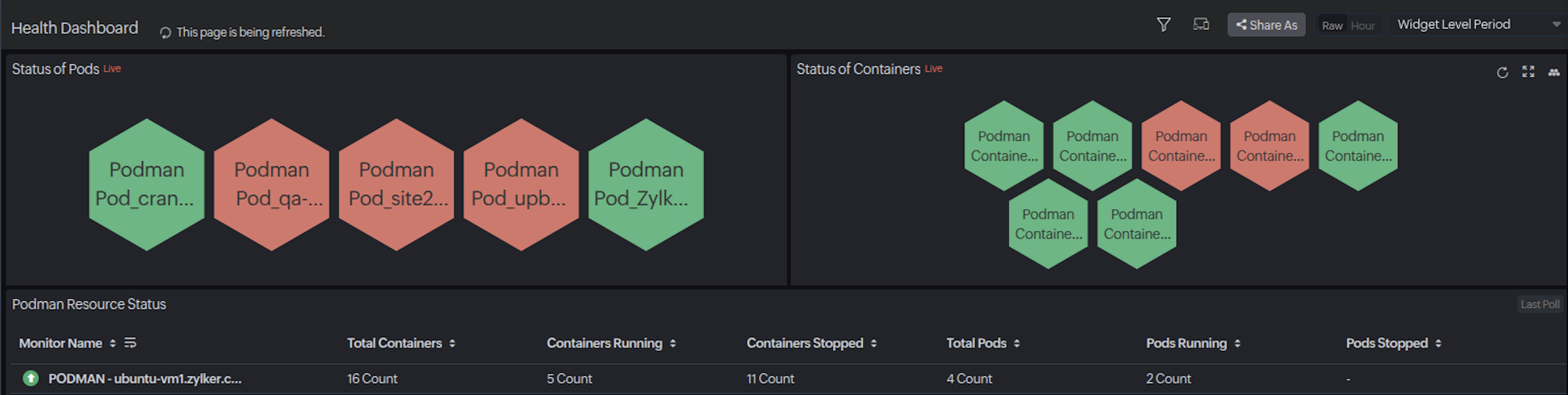
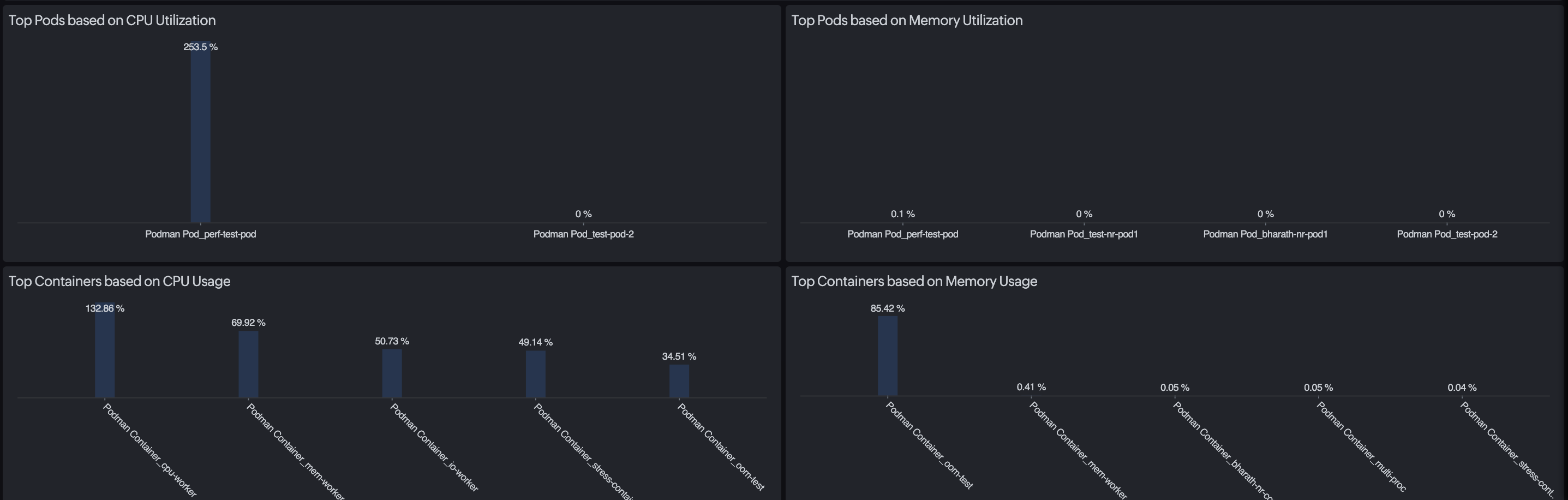
Health Dashboard: Provides a centralized, real-time view of the health and status of all Podman pods and containers in your environment. Use this dashboard to assess the overall state of your Podman resources quickly, track top consumers of CPU and memory, and identify performance bottlenecks at a glance.
Podman Host: Provides in-depth monitoring data for an individual Podman host. Navigate through the Overview, Pods, and Containers tabs to track resource trends, browse all pods and containers, and drill down into per-resource metrics.
Pods: Provides aggregated performance data for each pod, consolidated from the underlying containers. Use this to assess pod-level CPU utilization, memory usage, RSS, swap consumption, and out of memory (OOM) events.
Containers: Provides detailed per-container performance data, covering CPU, memory, disk I/O, threads, life cycle state, and static configuration. Use this to diagnose individual container issues, track resource consumption over time, and set granular thresholds.
Health Dashboard
| Metric name | Description | Unit |
|---|---|---|
| Status of Pods | Displays the real-time health status of all pods in your environment as a live NOC view. Each hexagonal tile represents a pod and changes color based on its current state. | NA |
| Status of Containers | Displays the real-time health status of all containers in your environment as a live NOC view. Each tile changes color based on the container's current state. | NA |
| Top Pods based on CPU Utilization | Displays the top pods ranked by CPU utilization for the selected time period, along with each pod's individual usage percentage. | Percentage |
| Top Pods based on Memory Utilization | Displays the top pods ranked by memory utilization for the selected time period, along with each pod's individual usage percentage. | Percentage |
| Top Containers based on CPU Usage | Displays the top containers ranked by CPU usage for the selected time period, along with each container's individual usage percentage. | Percentage |
| Top Containers based on Memory Usage | Displays the top containers ranked by memory usage for the selected time period, along with each container's individual usage percentage. | Bytes |
| Podman Resource Status | ||
| Monitor Name | Displays the name of the Podman host monitor. | NA |
| Total Containers | Displays the total number of containers on the Podman host, regardless of state. | Count |
| Containers Running | Displays the number of containers currently in a running state. | Count |
| Containers Stopped | Displays the number of containers currently in a stopped state. | Count |
| Total Pods | Displays the total number of pods on the Podman host, regardless of state. | Count |
| Pods Running | Displays the number of pods currently in a running state. | Count |
| Pods Stopped | Displays the number of pods currently in a stopped state. | Count |
Performance metrics for Podman hosts
The Podman host monitor gives you a complete view of a single Podman installation, tracking the health of its containers and pods, surfacing server-level resource trends, and listing all images and volumes on the host. Use the tabs to navigate across the available metrics and resources.
To access the Podman host
- Navigate to Server > Podman > Podman Hosts.
- Click the desired Podman host to open the monitor details page.
Interpret Podman host performance metrics
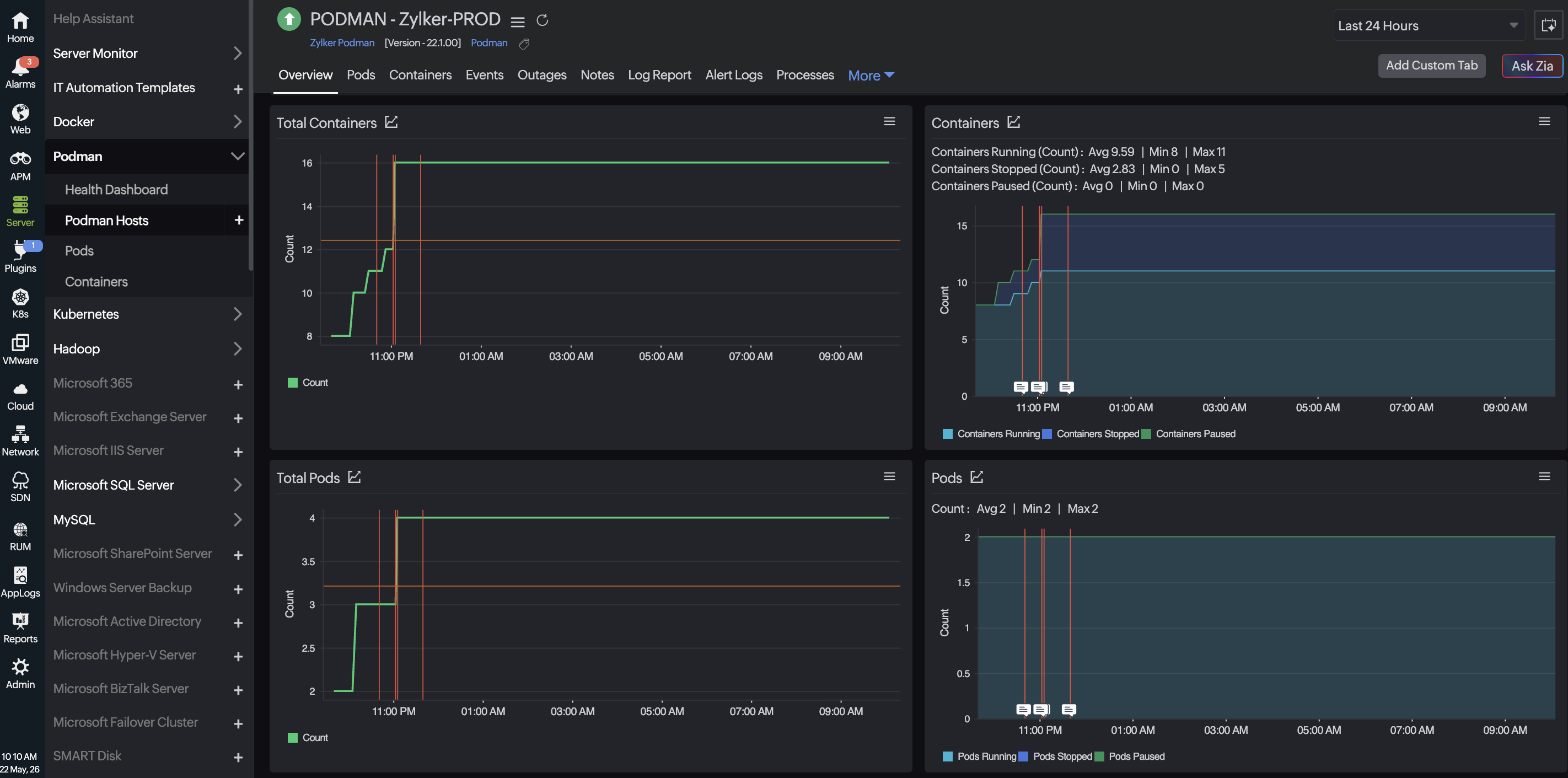
Overview: The Overview tab provides a consolidated, at-a-glance view of the Podman host's health and resource utilization.
Pods: The Pods tab lists all pods discovered on the Podman host.
Containers: The Containers tab lists all containers discovered on the Podman host.
Events: The Events tab displays real-time events generated by the Podman host.
Overview
| Metric name | Description | Unit |
|---|---|---|
| Availability | Displays the percentage of time the Podman host has been reachable and operational. | Percentage |
| Pods Running | Displays the number of pods currently in a running state on the Podman. | Count |
| Pods Stopped | Displays the number of pods currently in a stopped state on the Podman. | Count |
| Containers Running | Displays the number of containers currently in a running state on the Podman. | Count |
| Containers Stopped | Displays the number of containers currently in a stopped state on the Podman. | Count |
| Downtimes | Displays the number of recorded downtime incidents for the Podman within the selected time period. | Count |
| Total Containers | Displays a time-series graph of the total number of containers on the host. | Count |
| Total Pods | Displays a time-series graph of the total number of pods. | Count |
| Containers | ||
| Containers Running (Count) | Displays the average, minimum, and maximum count of containers in a running state over the selected period. | Count |
| Containers Stopped (Count) | Displays the average, minimum, and maximum count of containers in a stopped state over the selected period. | Count |
| Containers Paused (Count) | Displays the average, minimum, and maximum count of containers in a paused state over the selected period. | Count |
| Pods | ||
| Pods Running (Count) | Displays the average, minimum, and maximum count of pods in a running state over the selected period. | Count |
| Pods Stopped (Count) | Displays the average, minimum, and maximum count of pods in a stopped state over the selected period. | Count |
| Pods Paused (Count) | Displays the average, minimum, and maximum count of pods in a paused state over the selected period. | Count |
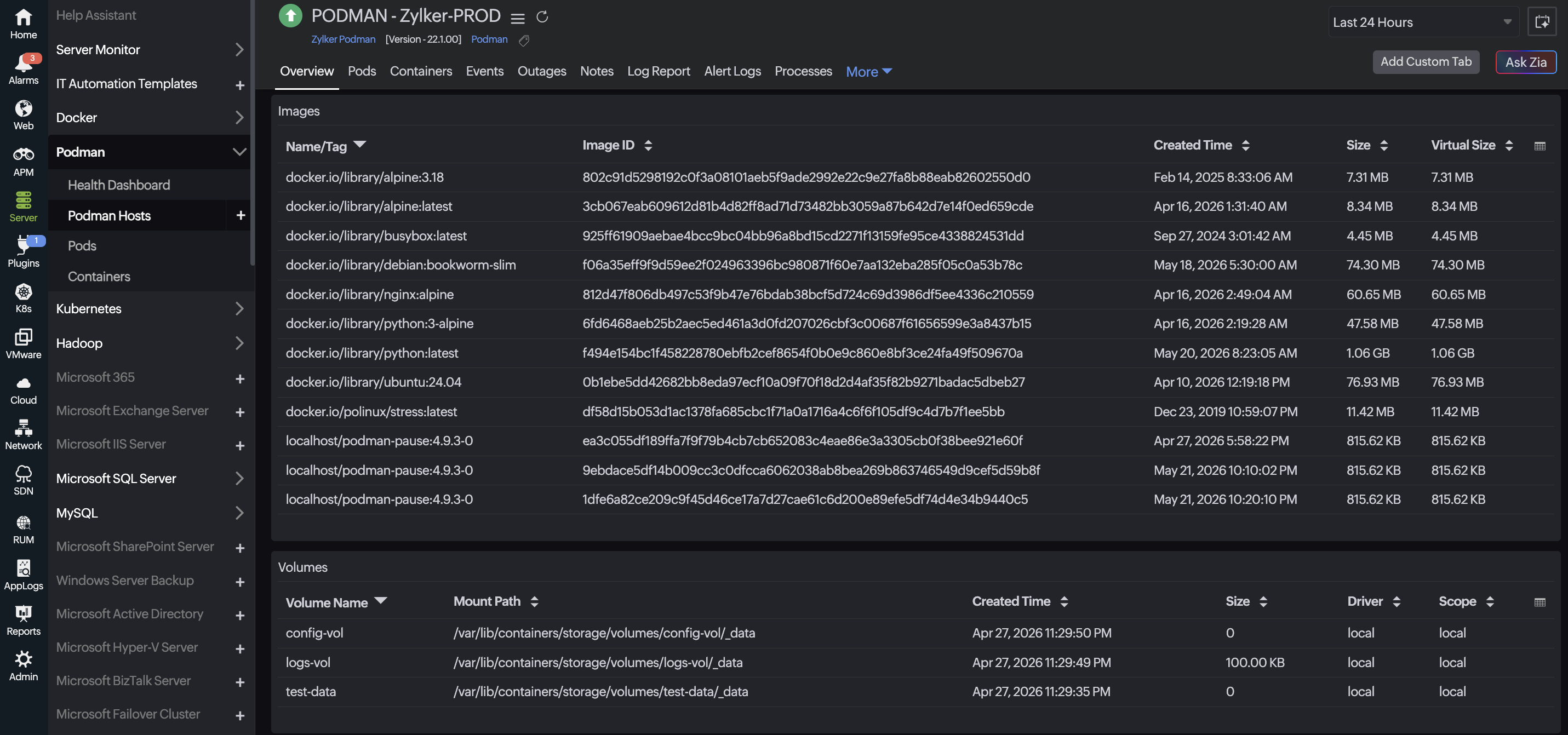
| Images | ||
| Name/Tag | Displays the repository name and tag label of the image (e.g., docker.io/library/nginx:alpine). | NA |
| Image ID | Displays the unique SHA256-based identifier assigned to the container image. | NA |
| Created Time | Displays the timestamp when the image was built. | MMM dd, yyyy h:mm:ss a |
| Size | Displays the actual on-disk size of the image. | Bytes |
| Virtual Size | Displays the total virtual disk space consumed, including all image layers. | Bytes |
| Volumes | ||
| Volume Name | Displays the name assigned to the volume. | NA |
| Mount Path | Displays the file system path where the volume is mounted on the host. | NA |
| Created Time | Displays the timestamp when the volume was created. | MMM dd, yyyy h:mm:ss a |
| Size | Displays the current disk space consumed by the volume. | Bytes |
| Driver | Displays the volume driver used to manage the volume (e.g., local). | NA |
| Scope | Displays the scope of the volume: local (single host) or global (cluster-wide). | NA |
Pods
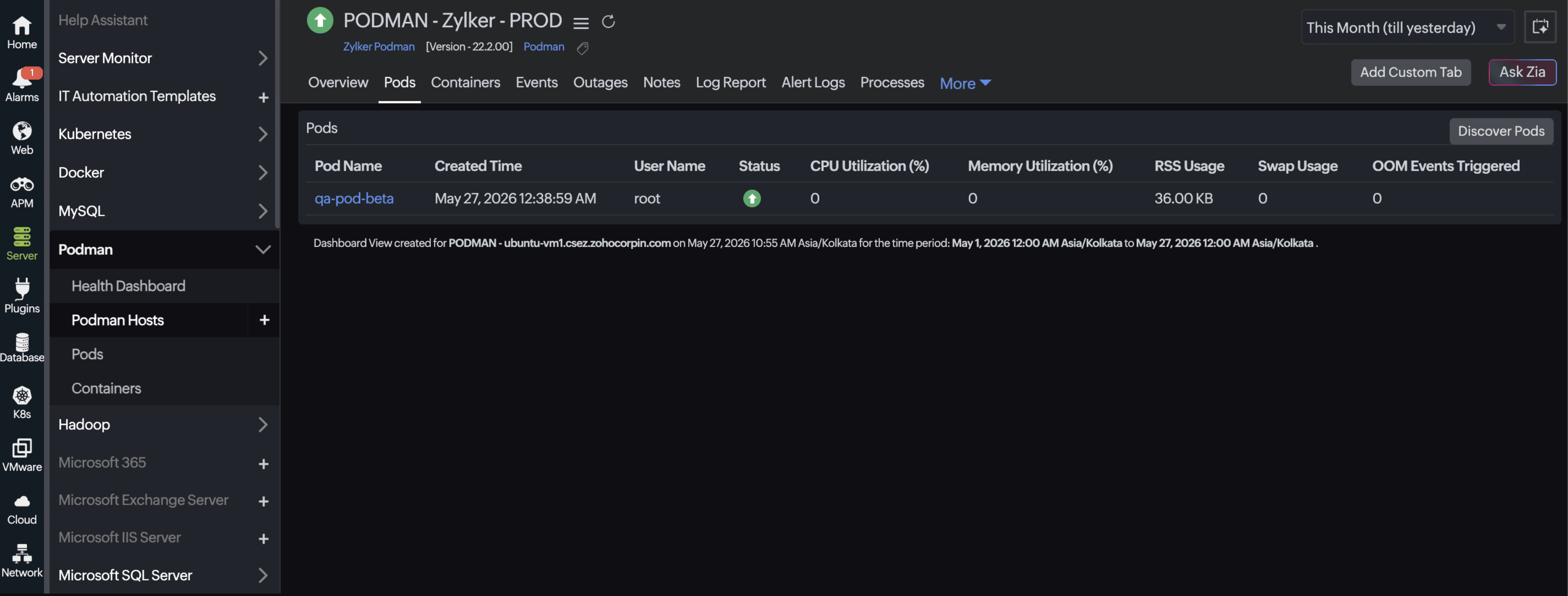
Each row represents a pod and shows its status alongside key performance metrics, giving you a quick view of pod health without needing to open each pod monitor individually. If the newly created pods are not reflecting, then click Discover Pods to trigger a fresh discovery.
| Metric name | Description | Unit |
|---|---|---|
| Pod Name | Displays the name of the pod. Click the name to open the individual pod monitor. | NA |
| Created Time | Displays the timestamp when the pod was created. | MMM dd, yyyy h:mm:ss a |
| User Name | Displays the server username to which each pod is assigned. | NA |
| Status | Displays the current life cycle status of the pod. | Status |
| CPU Utilization (%) | Displays the percentage of CPU utilized by all containers in the pod. | Percentage |
| Memory Utilization (%) | Displays the percentage of memory utilized by all containers in the pod. | Percentage |
| RSS Usage | Displays the resident set size (RSS) memory actively used across all containers in the pod. | Bytes |
| Swap Usage | Displays the total swap space consumed by all containers in the pod. | Bytes |
| OOM Events Triggered | Displays the total OOM kill events triggered across all containers in the pod. | Count |
Containers
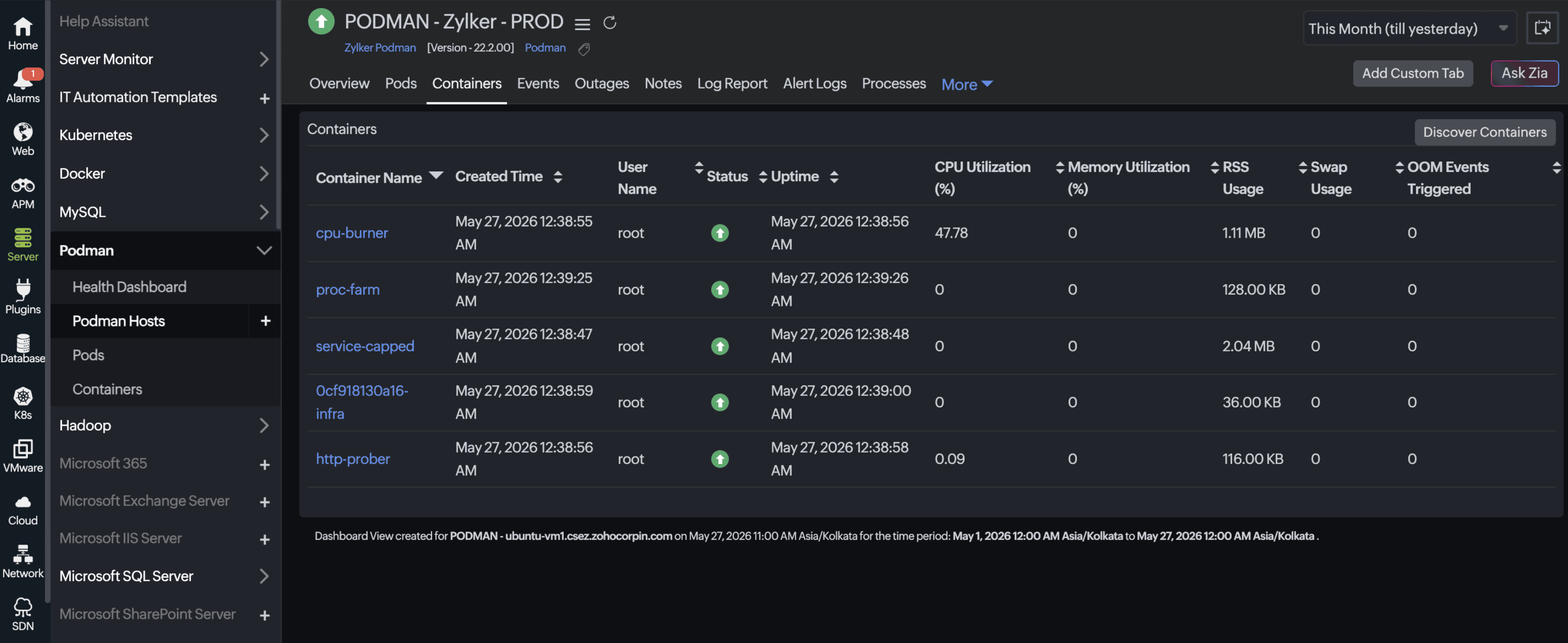
Similar to the Pods tab, each row displays the container's status and key performance data for a quick overview. If the newly created containers are not reflecting, then click Discover Containers to trigger a fresh discovery. Click a container name to open the individual container monitor for the full set of detailed metrics.
| Metric name | Description | Unit |
|---|---|---|
| Container Name | Displays the name of the container. Click the name to open the individual container monitor. | NA |
| Created Time | Displays the timestamp when the container was created. | MMM dd, yyyy h:mm:ss a |
| User Name | Displays the server username to which each container is assigned. | NA |
| Status | Indicates the container's life cycle status using up or down status icons to show whether it is active or inactive. | Status |
| Uptime | Displays the duration for which the container has been continuously running. | Seconds |
| CPU Utilization (%) | Displays the percentage of CPU utilized by the container. | Percentage |
| Memory Utilization (%) | Displays the percentage of the memory consumed by the container. | Percentage |
| RSS Usage | Displays the RSS: the non-cache physical memory actively used by the container. | Bytes |
| Swap Usage | Displays the amount of swap space consumed when the container has exceeded its available RAM. | Bytes |
| OOM Events Triggered | Displays the number of OOM kill events triggered within the container. | Count |
Events
The Events tab captures and displays real-time events generated by the Podman engine. To receive alerts, configure notification settings for specific event types. Furthermore, use the search option to filter events by resource like containers, pods, images, and volumes or apply query language for advanced filtering.
For example:
logtype="Podman Events" and Type="pod" and Action="stop"
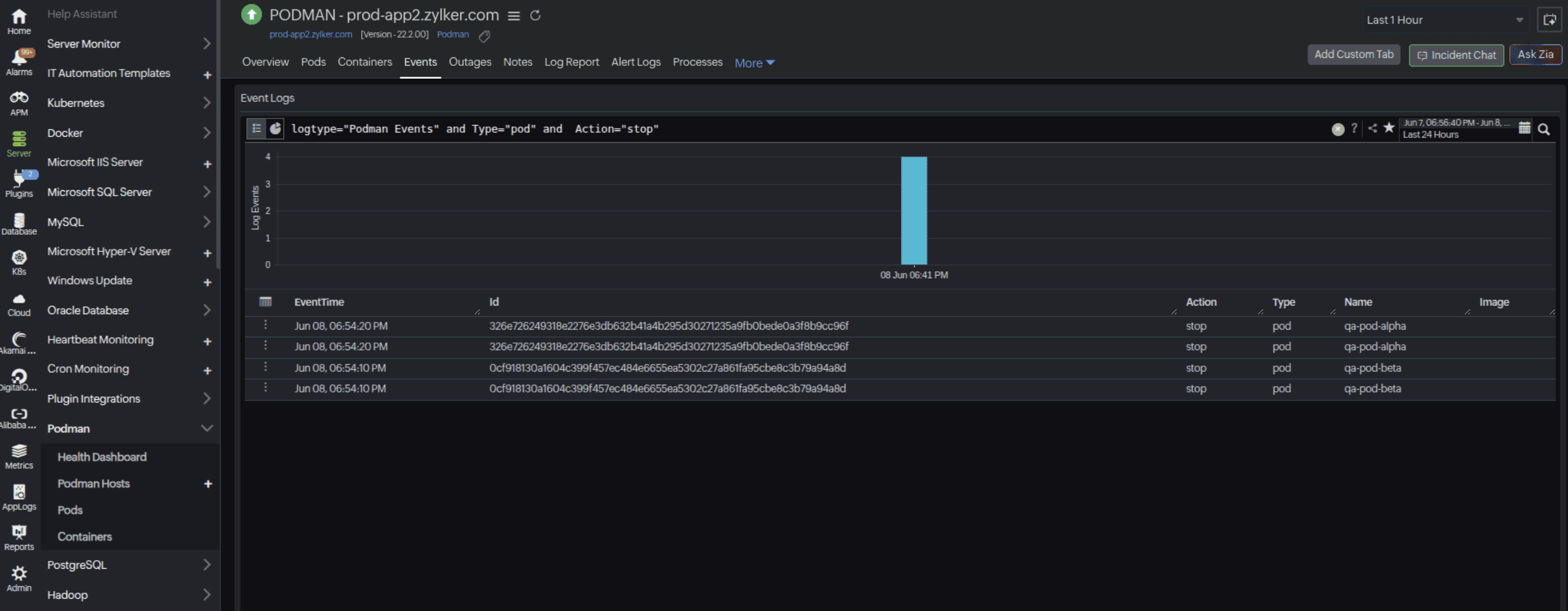
This query filters the current Podman events to show only events where a pod was stopped. In other words, it retrieves all stop actions performed on pods, captured from the Podman events log.
Performance metrics for Podman pods
To access Podman pods
- Navigate to Server > Podman > Pods.
- Select the desired Podman host to view the metrics below.
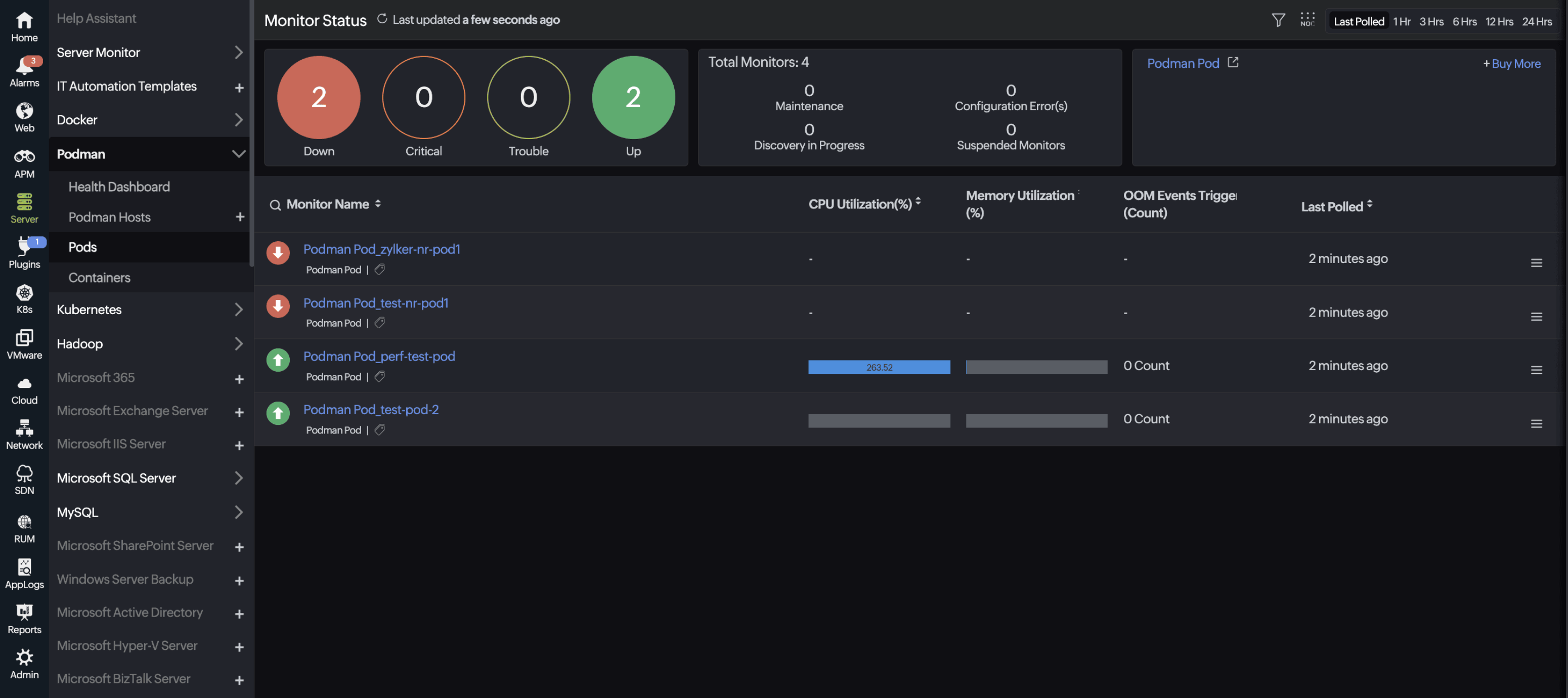
Interpreting pod performance metrics
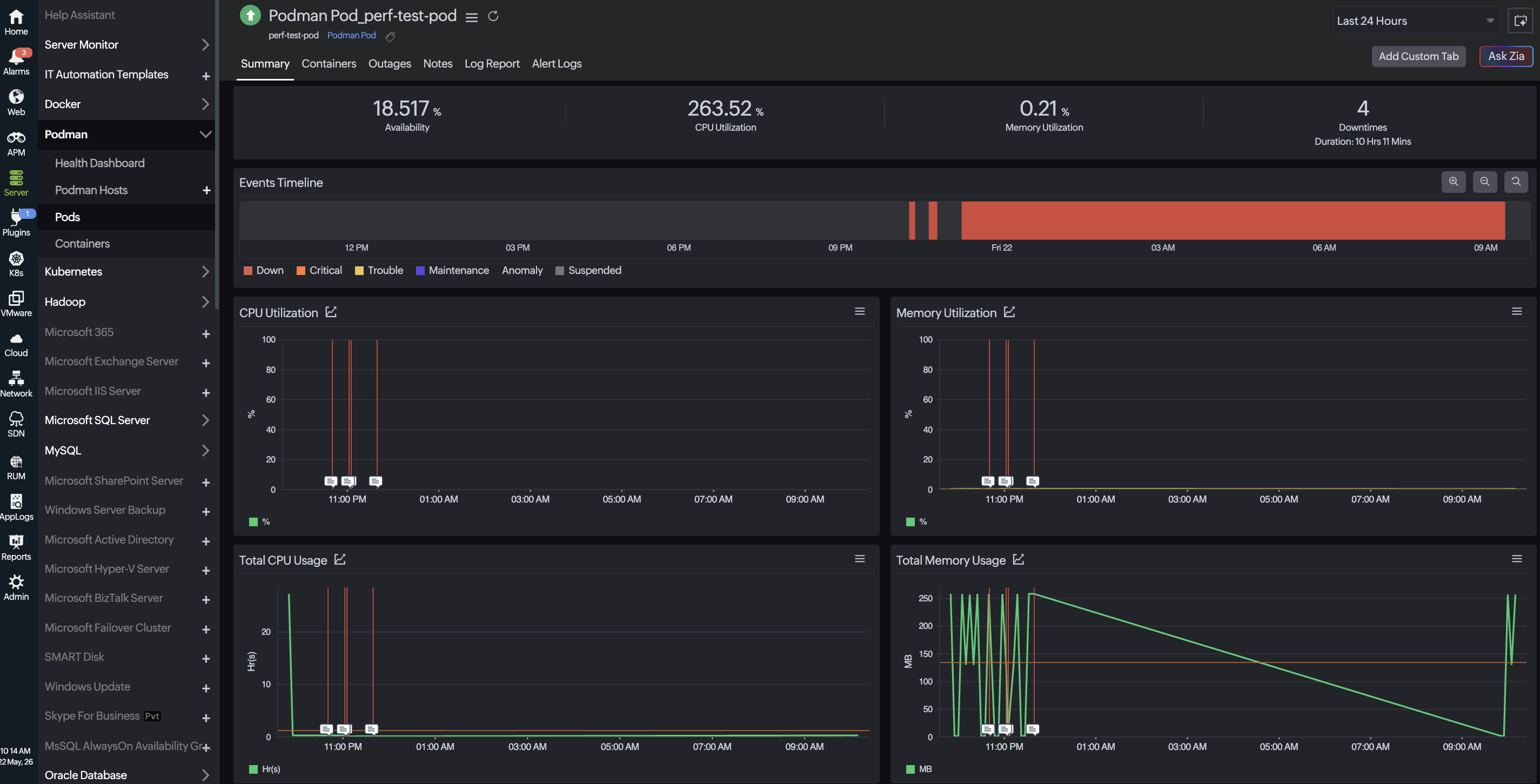
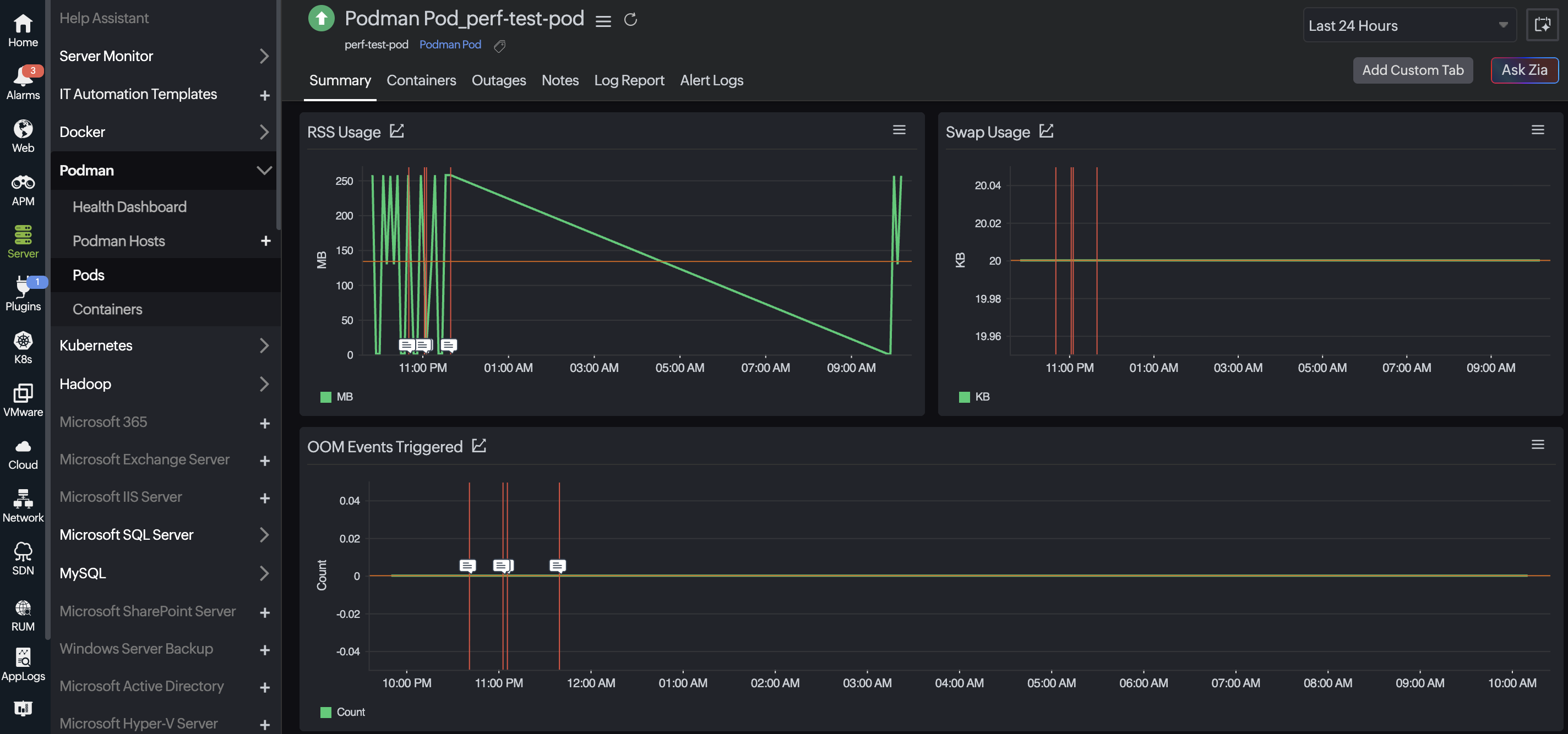
Summary: The Summary tab comprises metrics that track availability, CPU utilization, memory metrics, and OOM events for the selected pod.
Containers: The Containers tab lists all containers associated with the selected pod, providing a grouped, at-a-glance view of their status and key performance data. Click a container name to open the individual container monitor and view its detailed metrics.
Summary
| Metric name | Description | Unit |
|---|---|---|
| CPU Utilization | Displays the percentage of CPU utilized by all containers in the pod. | Percentage |
| Memory Utilization | Displays the percentage of memory utilized by all containers in the pod. | Percentage |
| Total CPU Usage | Displays the cumulative CPU time consumed across all containers in the pod. | Seconds |
| Total Memory Usage | Displays the total memory consumed by all containers in the pod. | Bytes |
| RSS Usage | Displays the RSS memory actively used across all containers in the pod. | Bytes |
| Swap Usage | Displays the total swap space consumed by all containers in the pod. | Bytes |
| OOM Events Triggered | Displays the total OOM kill events triggered across all containers in the pod. | Count |
Performance metrics for Podman containers
To access Podman containers
- Navigate to Server > Podman > Containers.
- Select the desired Podman host to view the metrics below.
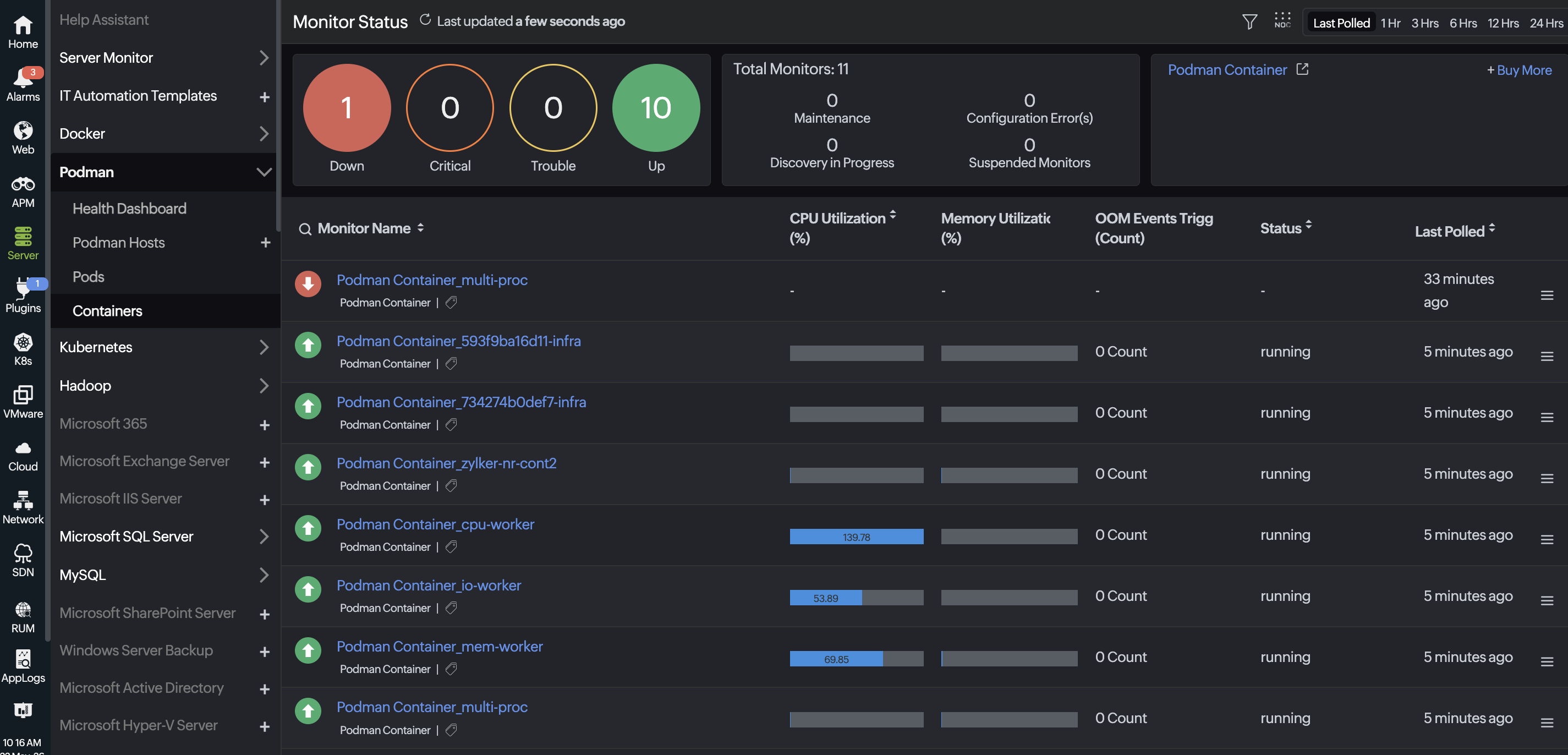
Interpreting container performance metrics
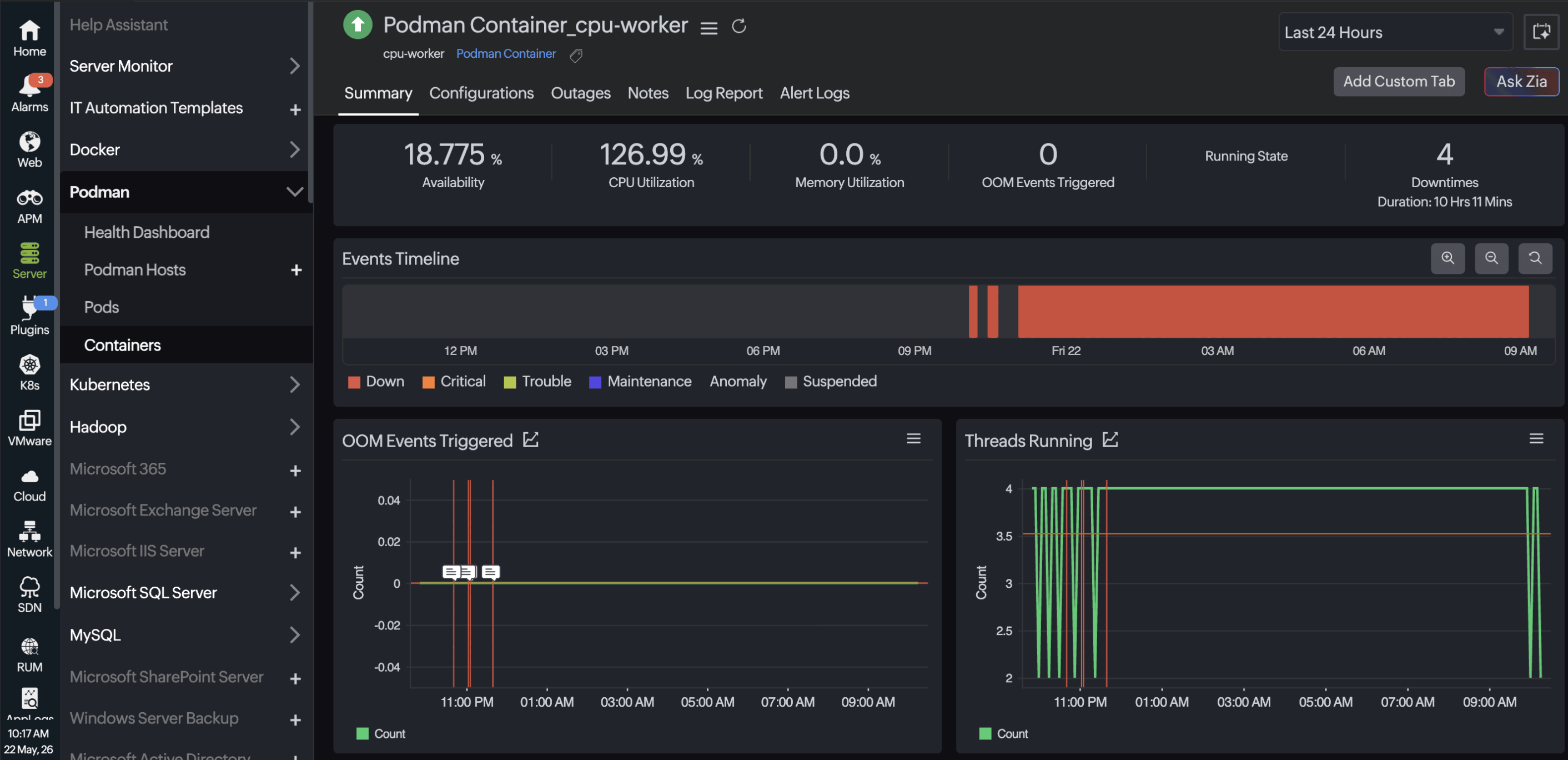
Summary: The Summary tab comprises a metric overview of the Podman container's Availability, CPU Utilization, Memory Utilization, OOM Events Triggered, Running State, Downtimes and Events Timeline that track availability, CPU consumption, throttling behavior, and utilization for each container.
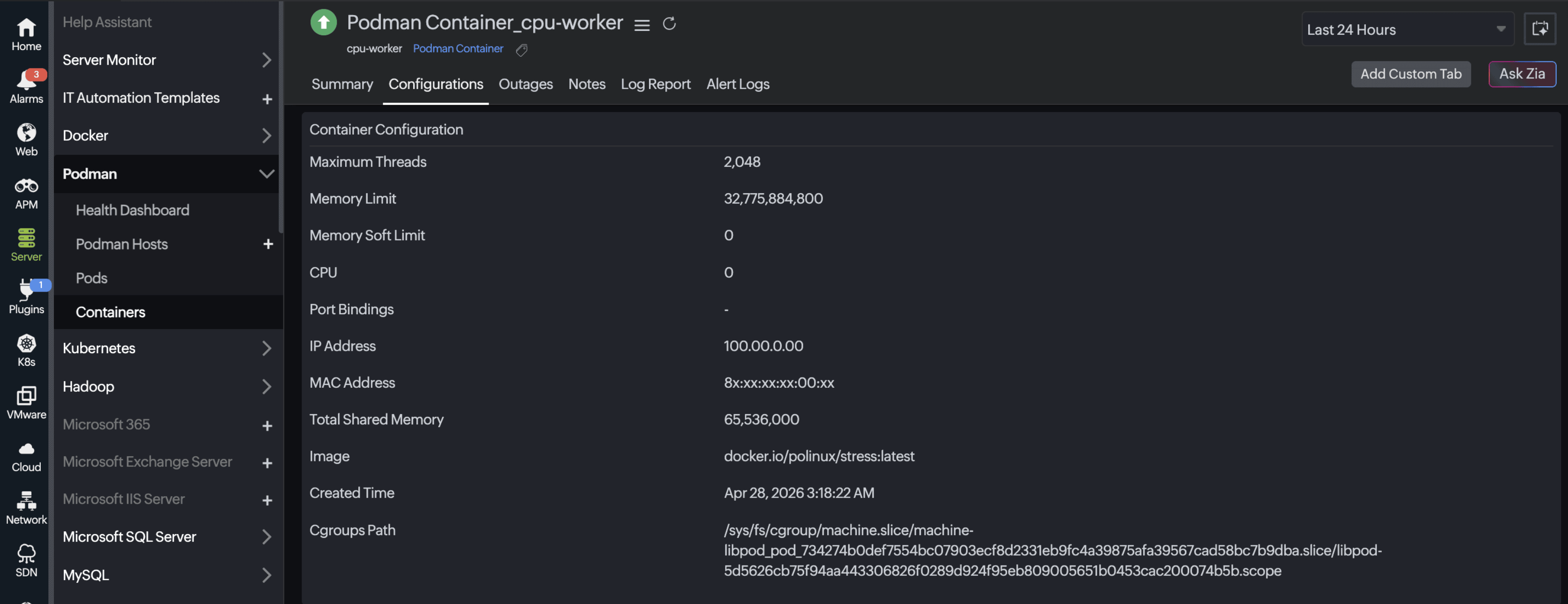
Configurations: The Configurations tab in the container monitor provides the static attributes of the selected container.
Summary
| Metric name | Description | Unit |
|---|---|---|
| OOM Events Triggered | Displays the number of OOM kill events triggered within the container. | Count |
| Threads Running | Displays the number of threads actively running inside the container. | Count |
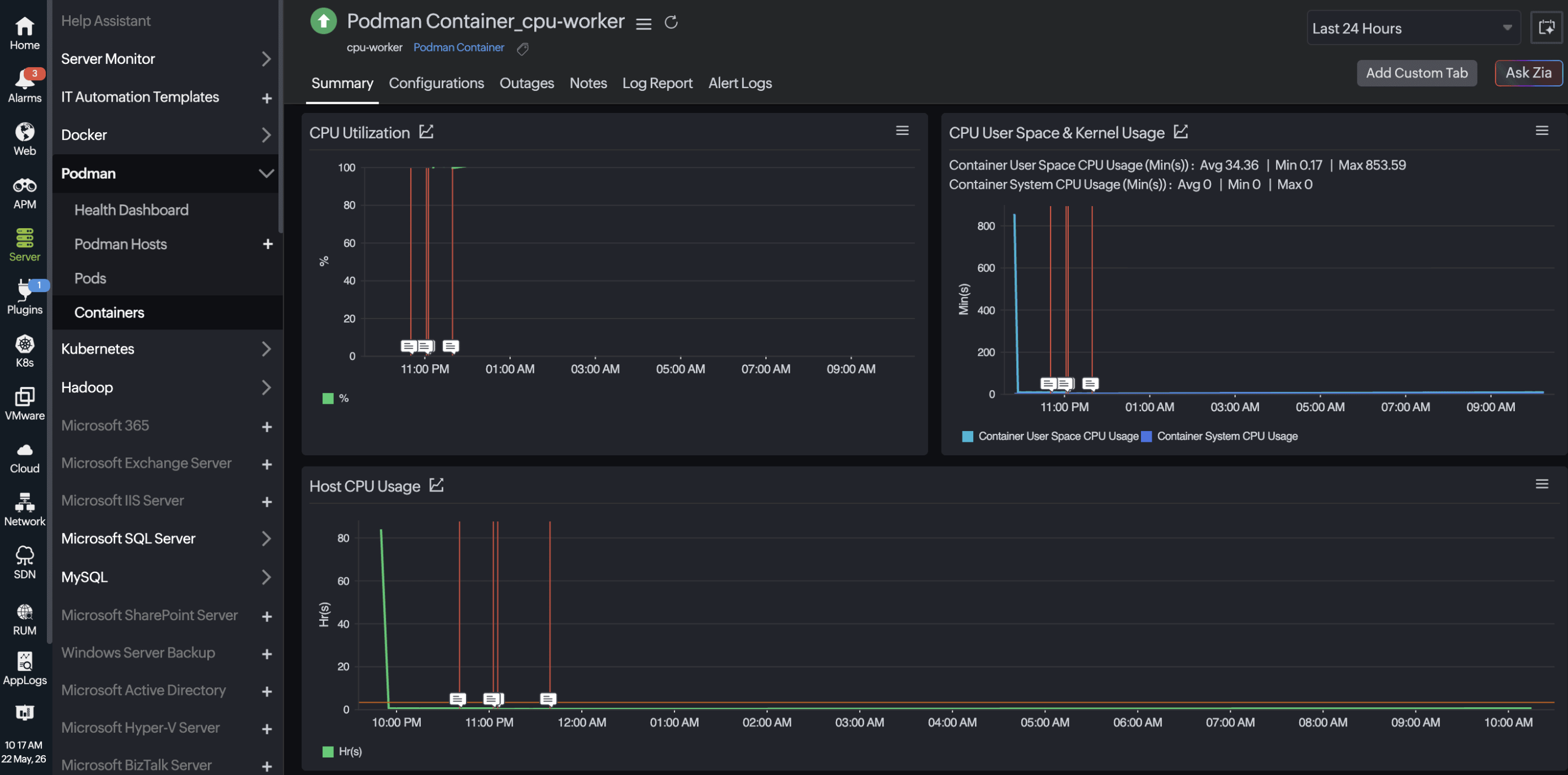
| CPU Utilization | Displays the percentage of CPU utilized by the container relative to its allocated quota. | Percentage |
| Host CPU Usage | Displays the CPU time consumed by the host server in relation to this container's workload. | Seconds |
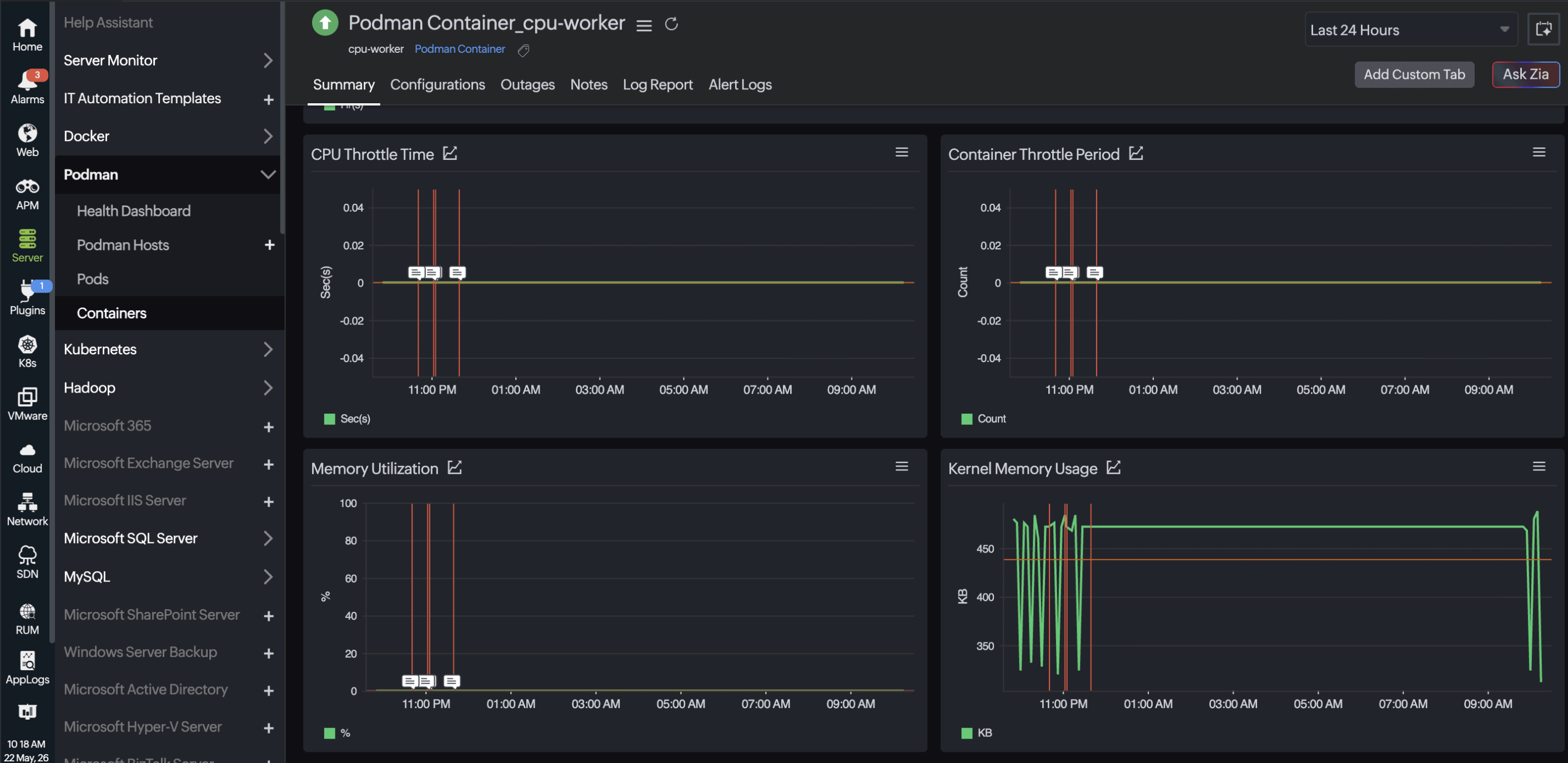
| CPU Throttle Time | Displays the total time the container was throttled due to CPU quota limits being exceeded. | Seconds |
| Container Throttle Period | Displays the number of scheduling periods during which the container's CPU usage was throttled. | Count |
| Memory Utilization | Displays the percentage of the memory utilized by the container. | Percentage |
| Kernel Memory Usage | Displays the memory consumed in kernel space by the container's processes. | Bytes |
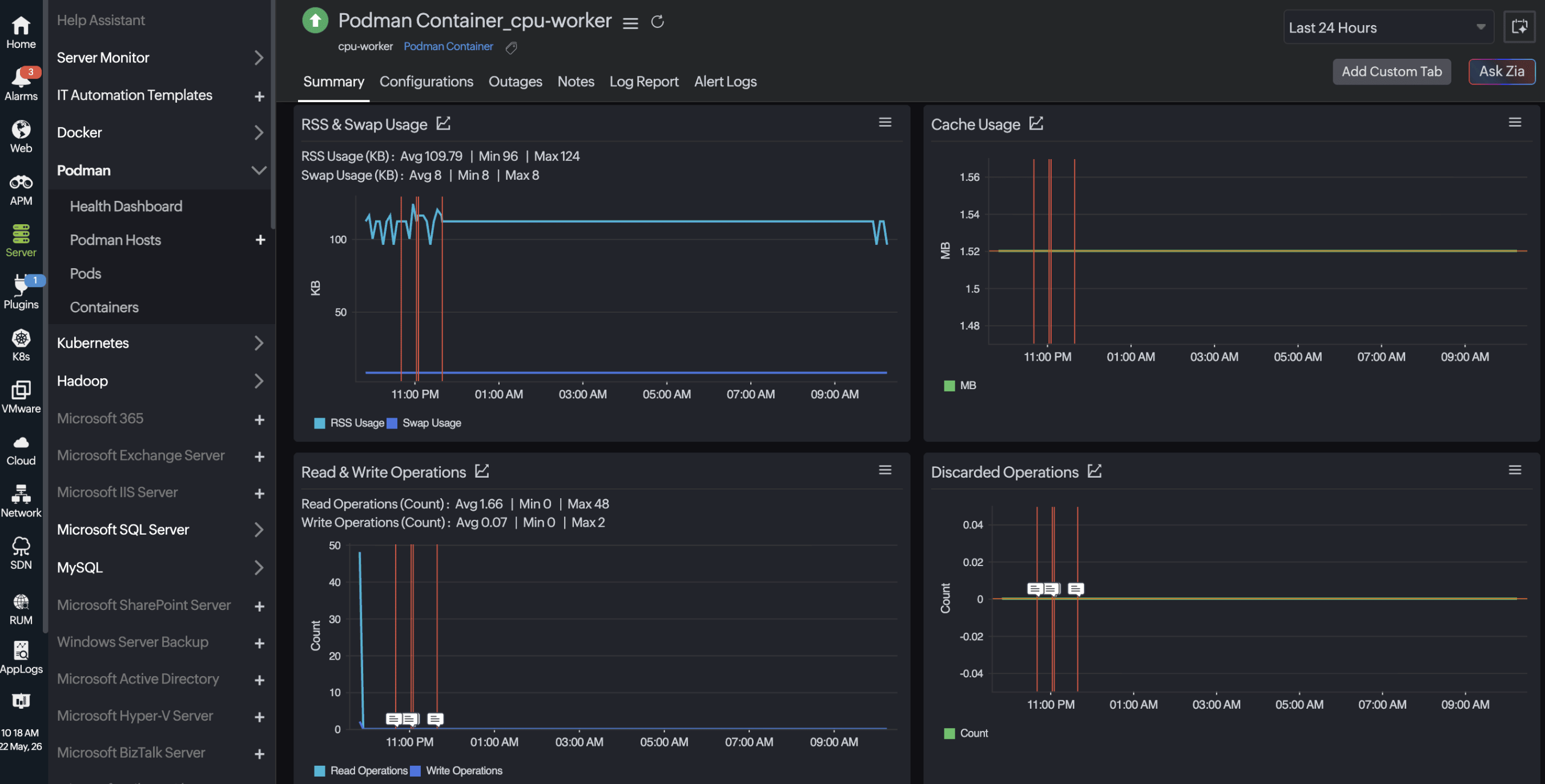
| Cache Usage | Displays the total page cache memory used by the container. | Bytes |
| Discarded Operations | Displays the number of discard (trim) operations sent to block devices. | Count |
| Page Fault | Displays the number of page faults incurred. | Count |
| Restart Count | Displays the total number of times the container has been restarted. | Count |
| CPU User Space and Kernel Usage | ||
| Container User Space CPU Usage | Displays the CPU time consumed in user mode (userspace) by the container. | Seconds |
| Container System CPU Usage | Displays the CPU time consumed in kernel (system) mode by the container. | Seconds |
| RSS and Swap Usage | ||
| RSS Usage (KB) | Displays the RSS the non-cache physical memory actively used by the container. | Bytes |
| Swap Usage (KB) | Displays the amount of swap space consumed when the container has exceeded its available RAM. | Bytes |
| Read and Write Operations | ||
| Read Operations (Count) | Displays the average, minimum, and maximum count of read operations performed on block devices. | Count |
| Write Operations (Count) | Displays the average, minimum, and maximum count of write operations performed on block devices. | Count |
Configurations
| Metric name | Description | Unit |
|---|---|---|
| Maximum Threads | Displays the maximum number of threads allowed inside the container. | Count |
| Memory Limit | Displays the hard memory limit configured for the container. | Bytes |
| Memory Soft Limit | Displays the soft memory limit at which the kernel begins reclaiming memory from the container. | Bytes |
| CPU | Displays the number of CPU cores allocated to the container. | Count |
| Port Bindings | Displays the port mappings configured between the container and the host. | NA |
| IP Address | Displays the IP address assigned to the container. | NA |
| MAC Address | Displays the MAC address assigned to the container's network interface. | NA |
| Total Shared Memory | Displays the total shared memory allocated to the container. | Bytes |
| Image | Displays the container image used to create this container. | MMM dd, yyyy h:mm:ss a |
| Created Time | Displays the timestamp when the container was created. | MMM dd, yyyy h:mm:ss a |
| Cgroups Path | Displays the cgroup control group path assigned to the container. | NA |