Podman monitoring
Track your Podman pods and containers using the Site24x7 Full-Stack Agent from one central console. Auto-discover Podman resources and monitor performance metrics for both the Podman pods and individual containers. This gives you insights to prevent performance degradation and respond to issues before they affect your workloads.
Use cases
- Correlating pod and container metrics for root cause analysis (RCA): To quickly identify performance bottlenecks, correlate pod-level CPU and memory trends with container-level metrics. Then use the Health Dashboard, Top Pods report, and Top Containers report to isolate problematic containers and accelerate troubleshooting from a single view.
- Eliminating alert noise for container life cycle events: During planned maintenance or scale-down activities, keep your monitoring environment clean and actionable. Then, automatically suppress alerts for expected container terminations and remove retired containers from the monitoring inventory using configuration rules, so teams are notified only of unexpected failures.
- Automate response for pod- and container-level threshold breaches: To improve response times, route Podman alerts to the right engineer based on on-call schedules. Then, when containers experience sustained resource spikes, repeated out of memory (OOM) events, or other critical threshold breaches, deliver alerts to the active responder and escalate them automatically if they remain unacknowledged.
Benefits of Podman monitoring
The following benefits highlight how Site24x7's Podman monitoring supports modern container operations:
- Maintain container health: Continuously monitor CPU, memory, network I/O, and block I/O metrics for every container to detect resource bottlenecks before they impact application availability.
- Reduce mean time to resolution (MTTR): Correlate pod-level metrics with individual container performance from a unified NOC dashboard to accelerate troubleshooting and RCA.
- Automate resource life cycle management: Use configuration rules to automatically remove terminated containers and suppress alerts for expected terminations, helping keep your monitoring inventory clean and relevant.
- Improve on-call responsiveness: Assign on-call schedules to Podman monitors to ensure alerts are routed to the appropriate team member during active shifts.
Prerequisites
Site24x7 Full-Stack agent version 22.2.00 or above must be installed on the Linux server hosting Podman.
Adding a Podman monitor
Auto-discovery
Install the Site24x7 Linux Full-Stack Agent. Site24x7 auto-discovers Podman pods and containers and adds them to the web console for monitoring.
Rediscovering Podman monitors
If the Podman monitor is absent from the Site24x7 web console or if it has been deleted previously, you can rediscover it by following the steps below:
- Log in to Site24x7.
- Go to Server > Server Monitor > Servers.
- Click the Linux server monitor that hosts Podman.
- Hover over the hamburger icon
 beside the display name.
 - Click Discover Applications in the drop-down menu.
Site24x7 agent reinitializes the discovery process and adds the Podman monitor to the web console.
Performance metrics
Monitor the performance of Podman pods and containers using critical metrics from a unified console.
Dashboards
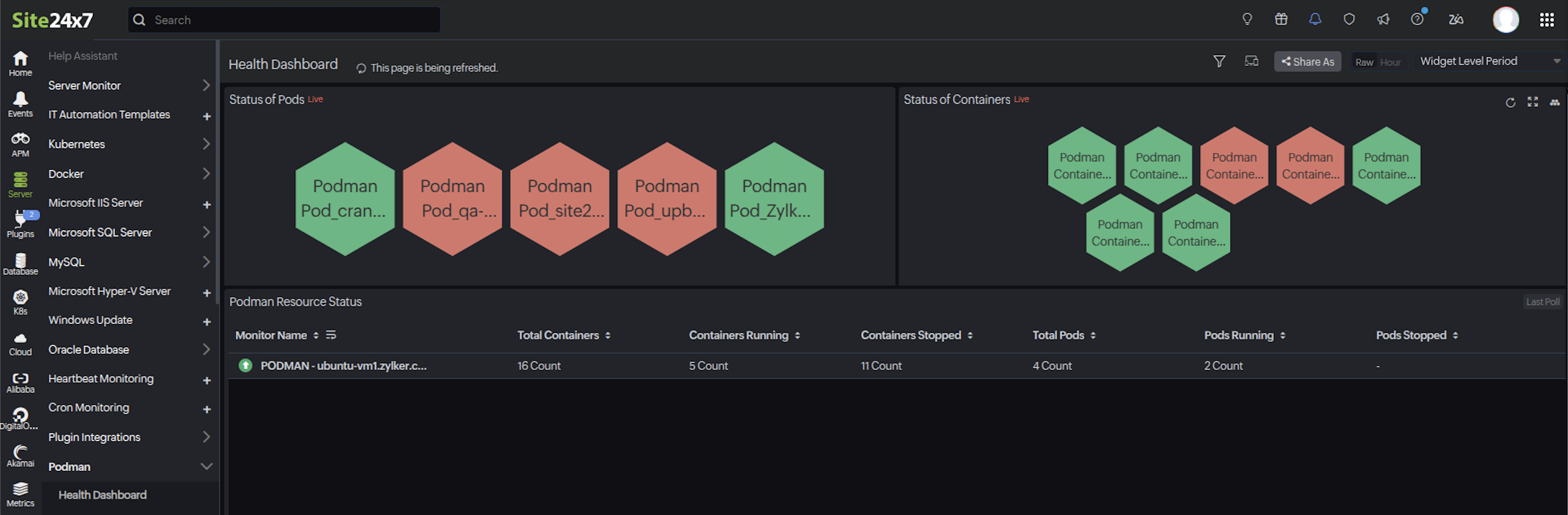
Once the Podman pod and container monitors are added in the Site24x7 web console, navigate to Server > Podman to view the following dashboards:
- The Health Dashboard displays a real-time status of all the pods and containers in your Podman environment as a NOC dashboard and the top reports based on traffic, IO, CPU utilization, and memory.
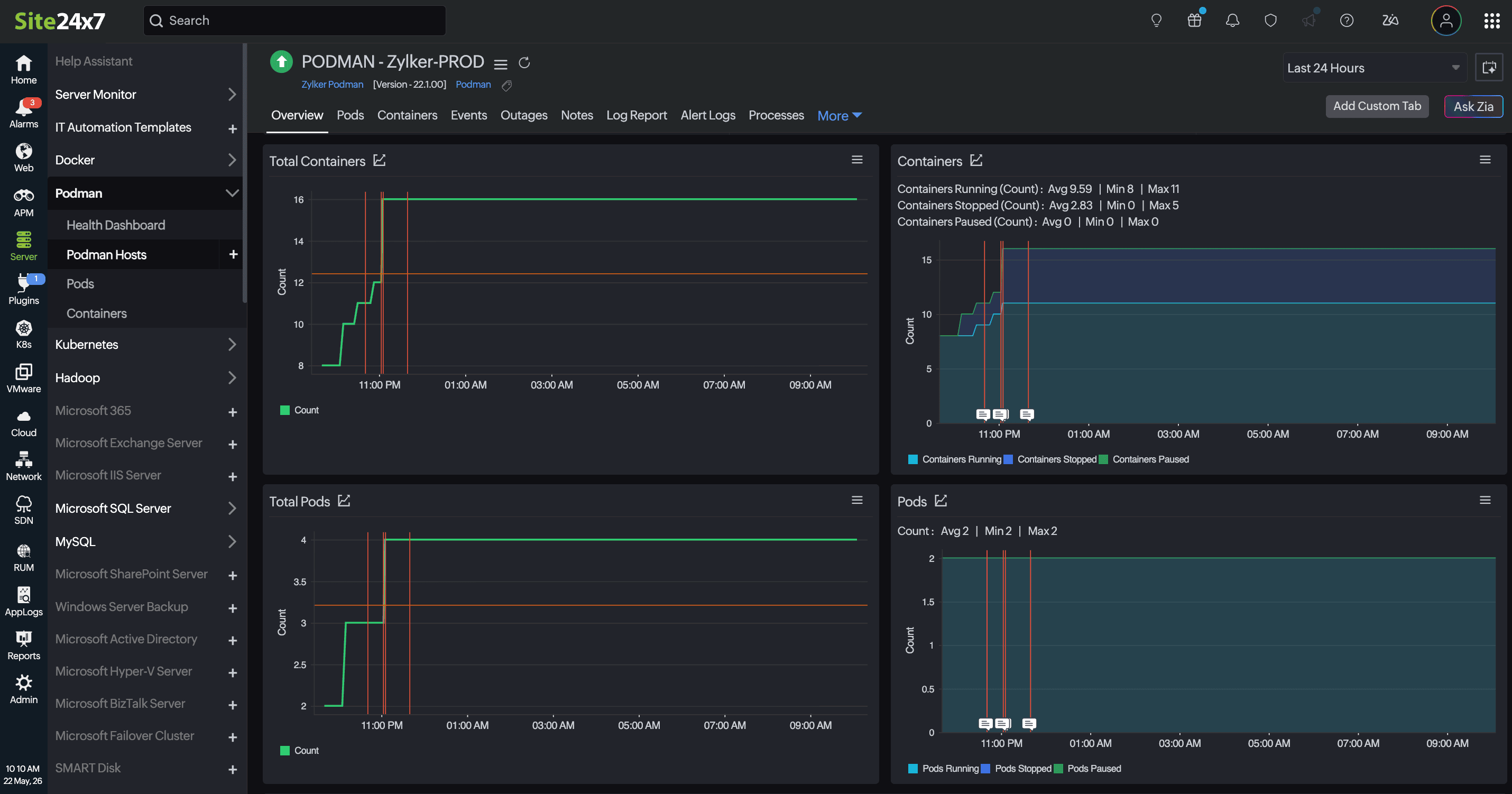
- Podman Hosts provides a centralized view of all monitored Podman environments, helping teams track host availability, container activity, pod status, and resource utilization from a single console.
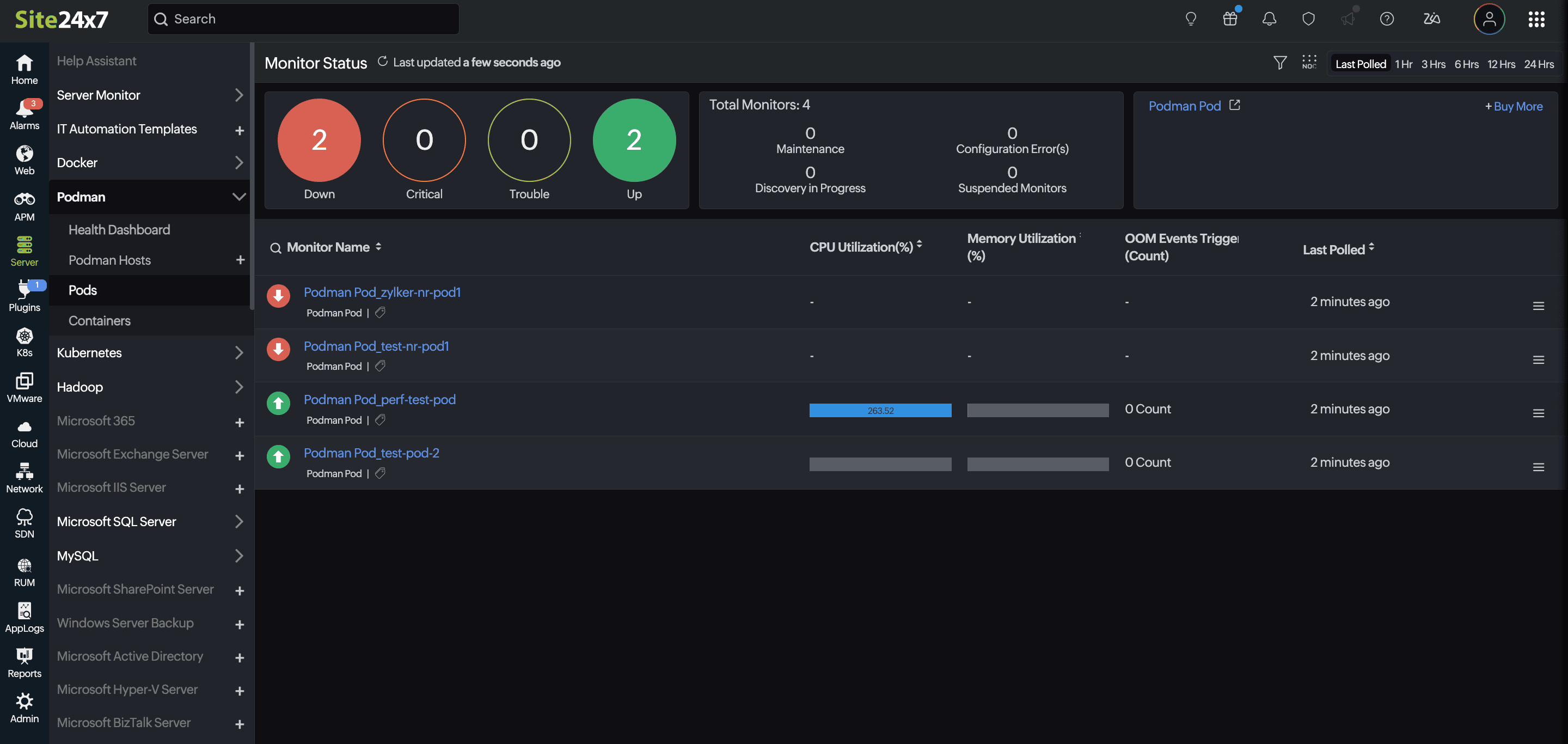
- Pods displays the Overview page, which provides visibility into the operational state and performance of all monitored pods within your Podman environment.
- Containers displays the monitor status page. This offers a consolidated view of all Podman monitored containers, enabling teams to monitor container health, CPU, and memory utilization; OOM events; and operational status in real time.
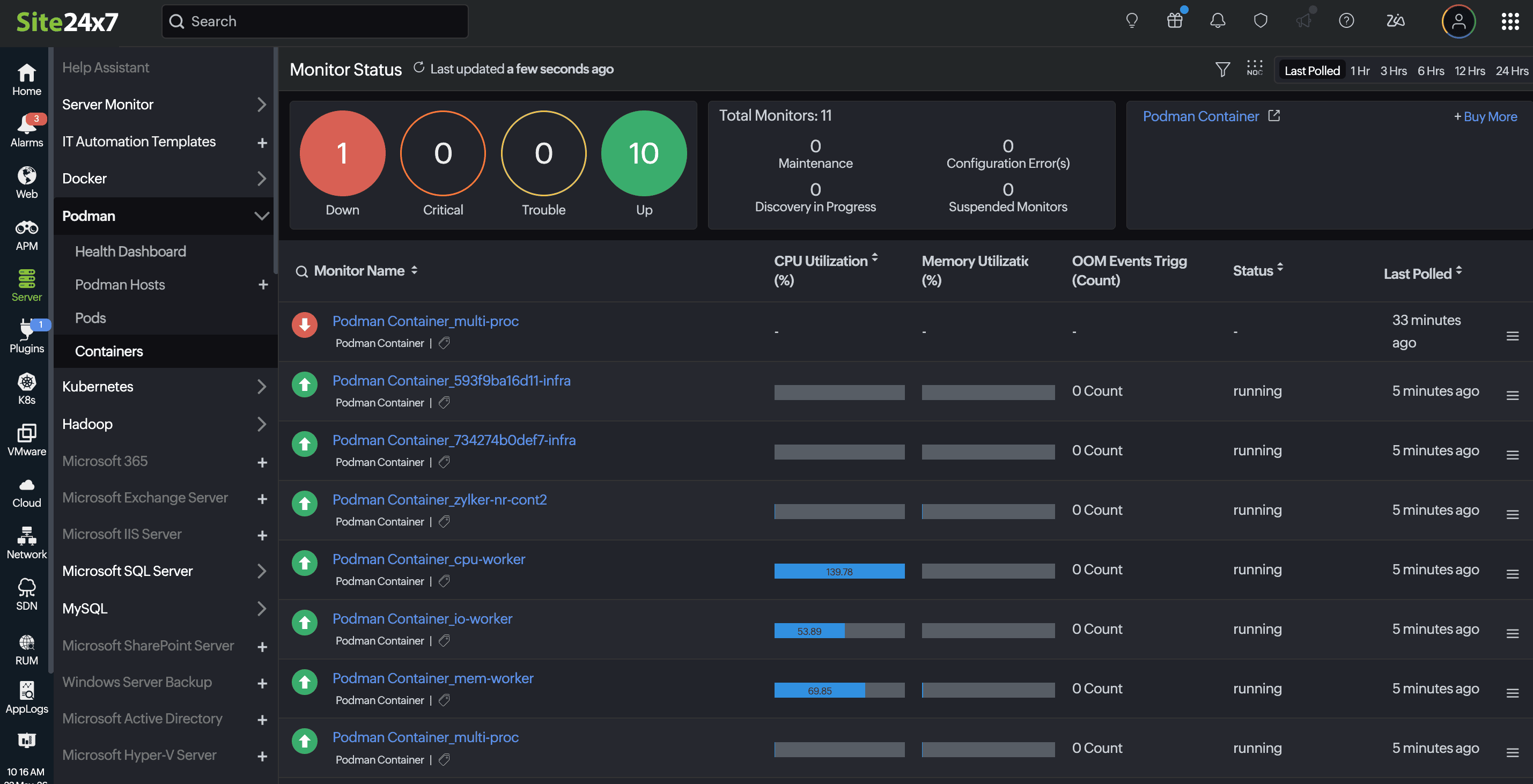
Configuration rules
Configuration rules for Podman help you assign predefined settings or configurations to your Podman resources. You can assign these rules to a group of Podman resources and run them to be applied immediately.
Reports
On the left menu, navigate to Reports. Select any of the following options: Podman, Podman Pod, or Podman Container. The reports listed below are available across all three monitor types:
Reports by selected monitor
In addition to the monitor reports available for Podman, Podman Pods, and Podman Containers, the Podman Images Report and Podman Volumes Report are also available.
Top N & Bottom N Reports
The Top N & Bottom N Reports help identify the highest- and lowest-performing monitored resources for a selected parameter, ranked in descending and ascending order respectively. Podman provides Top N & Bottom N Reports for:
Podman
- Total Containers
- Containers Running
- Total Pods
- Pods Running
Podman Pod
- Pod CPU Utilization
- Pod Memory Utilization
- Swap Usage
- OOM Events Triggered
Podman Container
- CPU Utilization
- Memory Utilization
- Swap Usage
- Read Operations
- Write Operations
- OOM Events Triggered
All Monitors reports
These reports are available across all monitors under each type. In addition to the default reports, you can create a custom report tailored to your monitoring needs. Click Create Custom Report on any Podman report page to create one.
Licensing
Each Podman host will consume two host monitor licenses.
Related articles
- Podman performance metrics
- Kubernetes monitoring
- Docker monitoring
- Add a server: Windows | Linux | FreeBSD | macOS