Using Zia in the Site24x7 iOS mobile app
Zia is Zoho’s AI-powered assistant designed to help you monitor and troubleshoot your IT infrastructure faster and more efficiently—anytime and anywhere. With Zia, you get quick insights and immediate answers based on your monitors—right from your mobile device.
Zia enables you to quickly identify resources that are down and analyze the underlying causes through intuitive, natural language queries. You can also utilize voice commands to ask questions. Zia is built with the latest Liquid Glass UI design on iOS, ensuring a smooth, intuitive experience.
The AI-powered conversational assistant (Ask Zia) helps you understand monitoring data using natural language questions. You can summarize alarms and outages, identify performance trends, and get troubleshooting guidance to investigate issues faster. Learn more about Zia in Site24x7.
In the mobile app, the AI mode provides a full-screen interface to ask questions, review analysis details, and revisit previous conversations.
Prerequisites
Before using Zia, ensure the following:
- You have the latest version of the Site24x7 iOS mobile app.
- You are logged in with a valid Site24x7 account.
- You have a valid integration with the LLM. Learn more about integrating LLMs with Site24x7.
Access AI mode in the mobile app
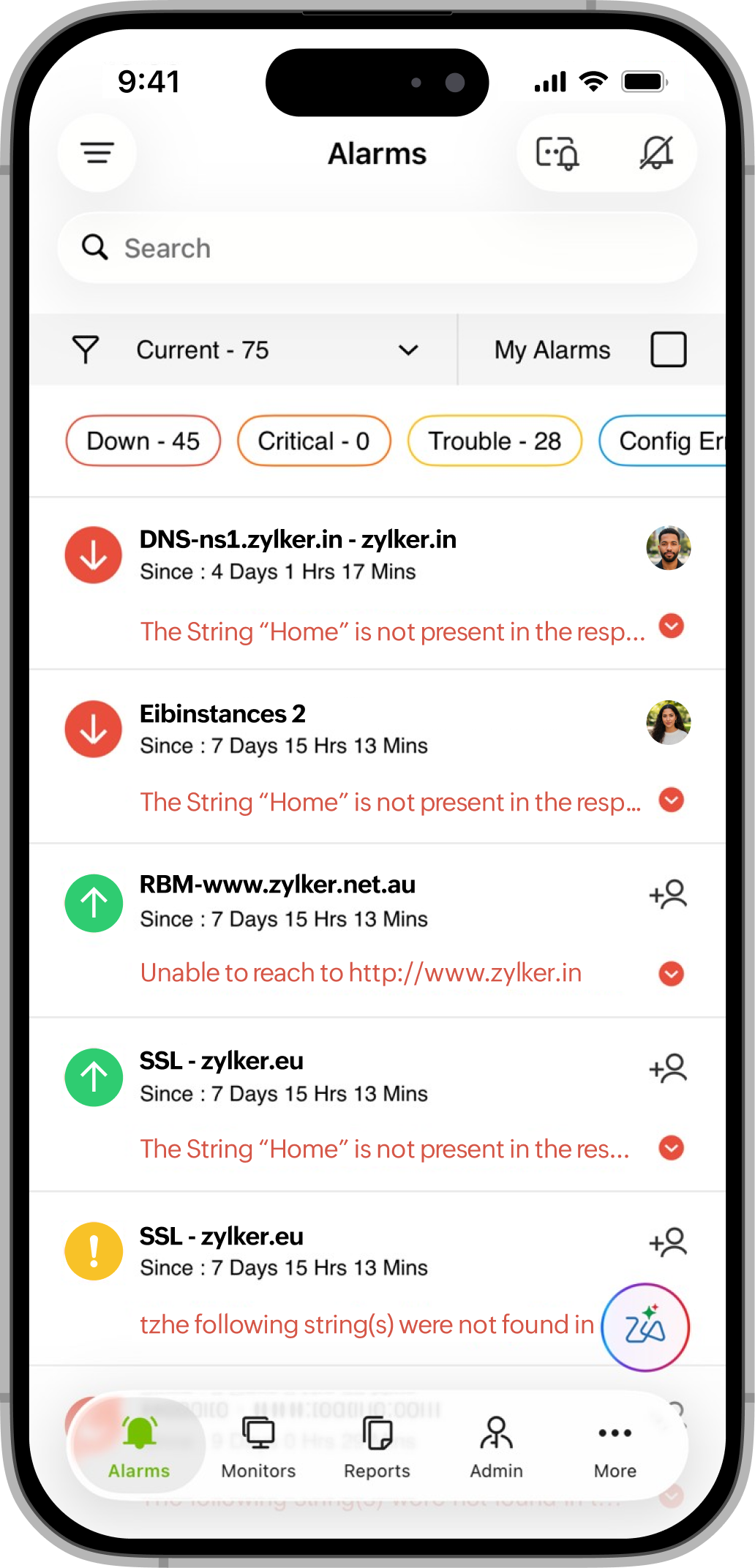
- Log in to the Site24x7 mobile app.
- Tap the Zia icon
 in the bottom-right corner of the page.
- The full-page Ask Zia interface opens with the Ask Zia anything input field, suggested prompts, and any agents available in your account.
Use the AI mode
Start a conversation
Type your question in the Ask Zia anything input field, use voice input, or select a suggested prompt. Ask Zia processes your request and provides relevant information.
For example, select 'Summarize open alarms from the last 24 hours' to get a summary of active alarms.
Ask Zia summarizes the alarms by severity, status, and affected monitors, so you can identify the issues that need immediate attention.
Run an agent
The agents configured in your account appear above the Ask Zia anything input field. Tap the agent you want to run. When prompted, approve the request to allow Zia to run the selected agent. Learn more about Zia Agents.
Review analysis details
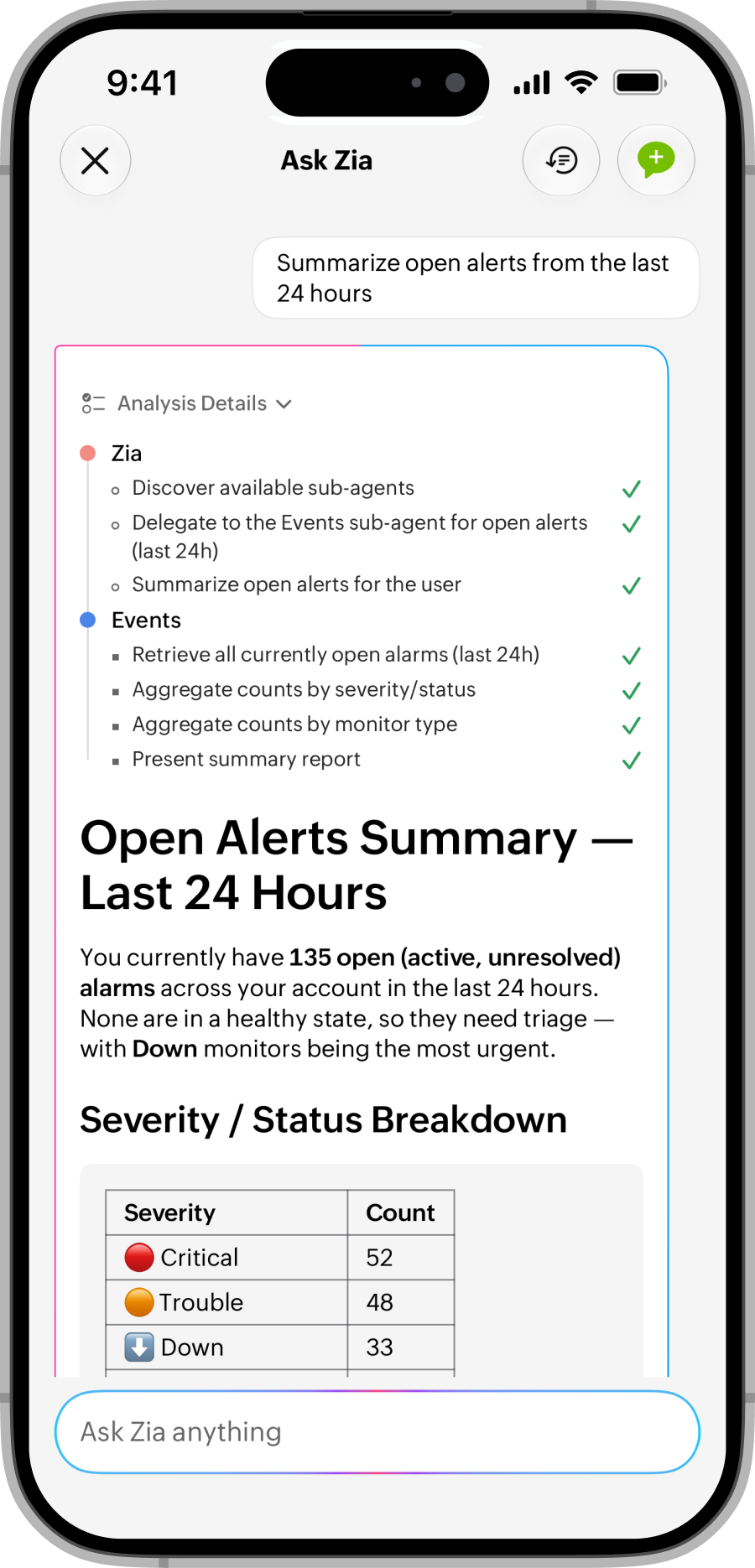
After Zia responds to your request, tap Analysis Details in the response to understand how it arrived at the answer. You can review the monitoring data retrieved, the checks performed, and the analysis used to prepare the response.
For example, when you request an alert summary, the analysis details show how Zia retrieved alarms, grouped them by severity or status, and compiled the summary.
Access conversation history
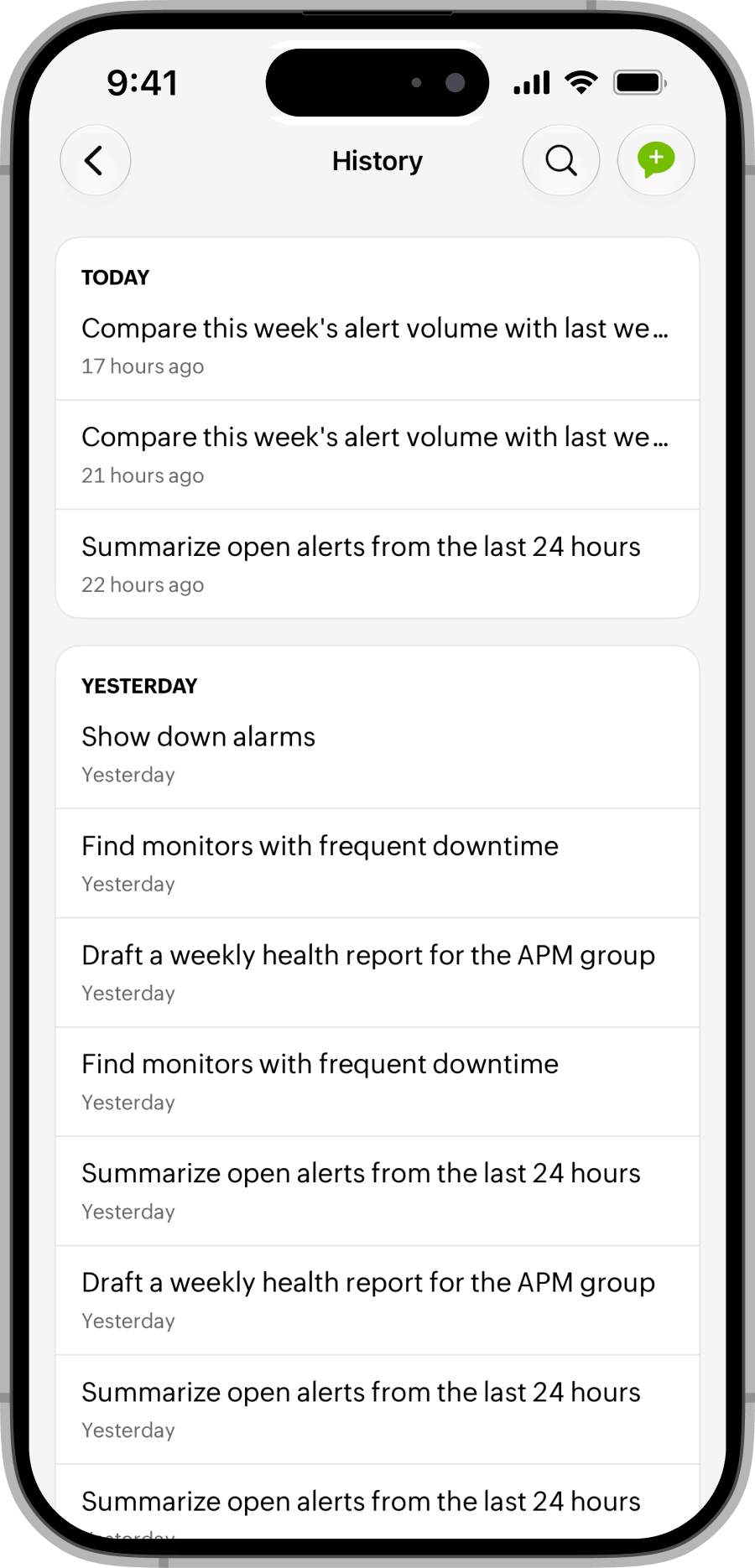
Tap the History icon  in the upper-right corner of the Ask Zia page to access previous conversations and operations (Histories). Use Search chats to find a conversation. This helps you to revisit earlier responses and continue investigations without repeating your questions.
Start a new conversation
Tap the Plus  icon to start a new chat with Zia.
Learn more about conversations, and analysis details in the Ask Zia interface documentation.
What can Zia do?
Zia leverages AI-driven monitoring insights to help you detect, diagnose, and resolve issues faster—right from your mobile app. With natural language conversations and real-time intelligence, Zia empowers you to:
- Identify issues instantly: Chat with Zia to learn about outages, critical incidents, or abnormal behavior across your resources.
- Get AI-powered performance insights: Receive concise summaries of the CPU, memory, response time, and network health of your resources using Zia powered by AI.
- Understand root causes quickly: Review RCA findings to see why an issue occurred and which resources were impacted.
- View conversational alerts: Get natural language event summaries with relevant context and recommended actions.
- Unify access to critical information: Check alarms, outages, and incidents in one unified view—no deep navigation required.
- Enable self-service resolution: Access direct links to documentation and knowledge base articles to fix issues independently.
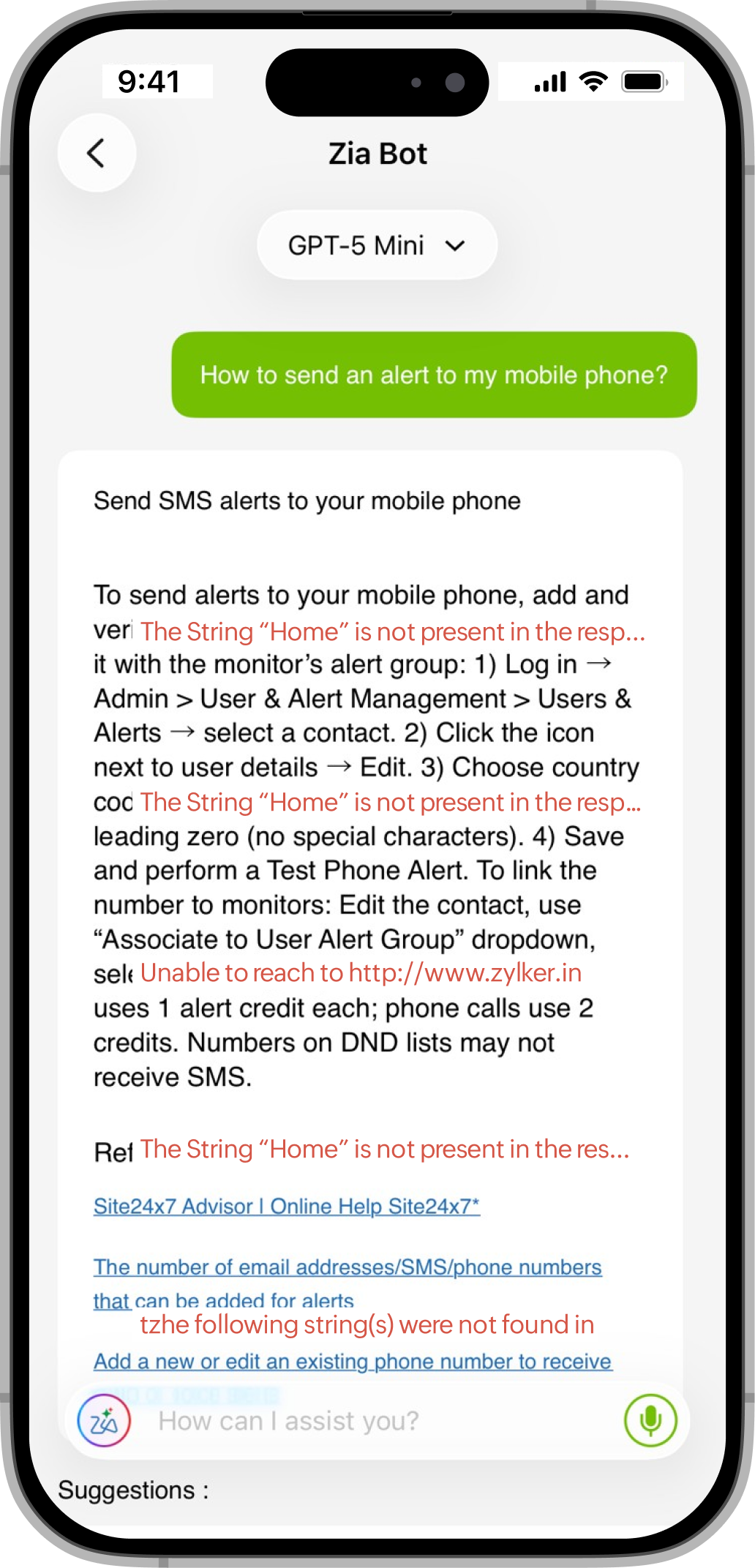
Interact with Zia more effectively by copying responses, listening to answers, and rating their quality using the thumbs up  icon or the thumbs down
 icon. Selecting the thumbs down icon opens a feedback dialog where you can share additional comments to help us improve future responses.
Sample scenarios
- Checking on ongoing outages while on the move
When you’re on the go and receive a critical alert, there’s no need to navigate through multiple screens. Ask Zia, “What’s the current outage status?”
Zia will quickly provide you with a list of ongoing outages, including details about the affected monitors, their severity status, and when they went down. This way, you can stay informed and take action swiftly, even when you’re away from your workstation. - Quick RCA lookups outside business hours
Late at night, a key server becomes unstable, and you want to understand the root cause before bringing in your team. You can ask Zia, “Why is my server down?” Or you can say, “Show me the RCA for the last alert.”
Zia will summarize the reason for the failure that is causing the issue (e.g., CPU saturation, a slow database, or network issues). It provides information on the time correlation, anomaly detection results, and impacted services. With actionable insights delivered instantly, you can triage the incident more quickly. - Hands-free monitoring using voice commands
When you don’t have the time or free hands to type, simply tap the microphone icon and ask, “How is my website performing today?”
Zia will convert your voice input into a query, gather the relevant monitoring information, and display the results within seconds. This is perfect for field engineers, on-site technicians, or quick checks during a commute.