
How to authenticate Akamai Cloud for Site24x7 monitoring
To monitor your Akamai Cloud resources with Site24x7, you need to provide valid credentials that allow Site24x7 to authenticate with your Akamai Cloud account and discover your cloud resources.
Site24x7 supports two authentication methods, choose the method that best fits your environment:
- Token-based authentication: Personal Access Token (PAT) for straightforward setups.
- Site24x7 OAuth provider: OAuth application-based access for environments that require a higher level of security.
Prerequisites
- An active Akamai Cloud account with Resource Viewer permissions to view team resources such as droplets, Kubernetes clusters, load balancers, and databases.
- API access enabled on your Akamai Cloud account.
- Access to the Akamai Cloud Control Panel or the Developer API portal.
- A Site24x7 account with sufficient licenses to add cloud monitors.
Method 1: Token-based authentication
Use a manually generated Personal Access Token (PAT) if OAuth access is not suitable for your environment, for example, in straightforward or non-restricted setups.
Step 1: Sign in to Akamai Cloud console
- Go to https://cloud.linode.com/login.
- Sign in with your Akamai Cloud credentials.
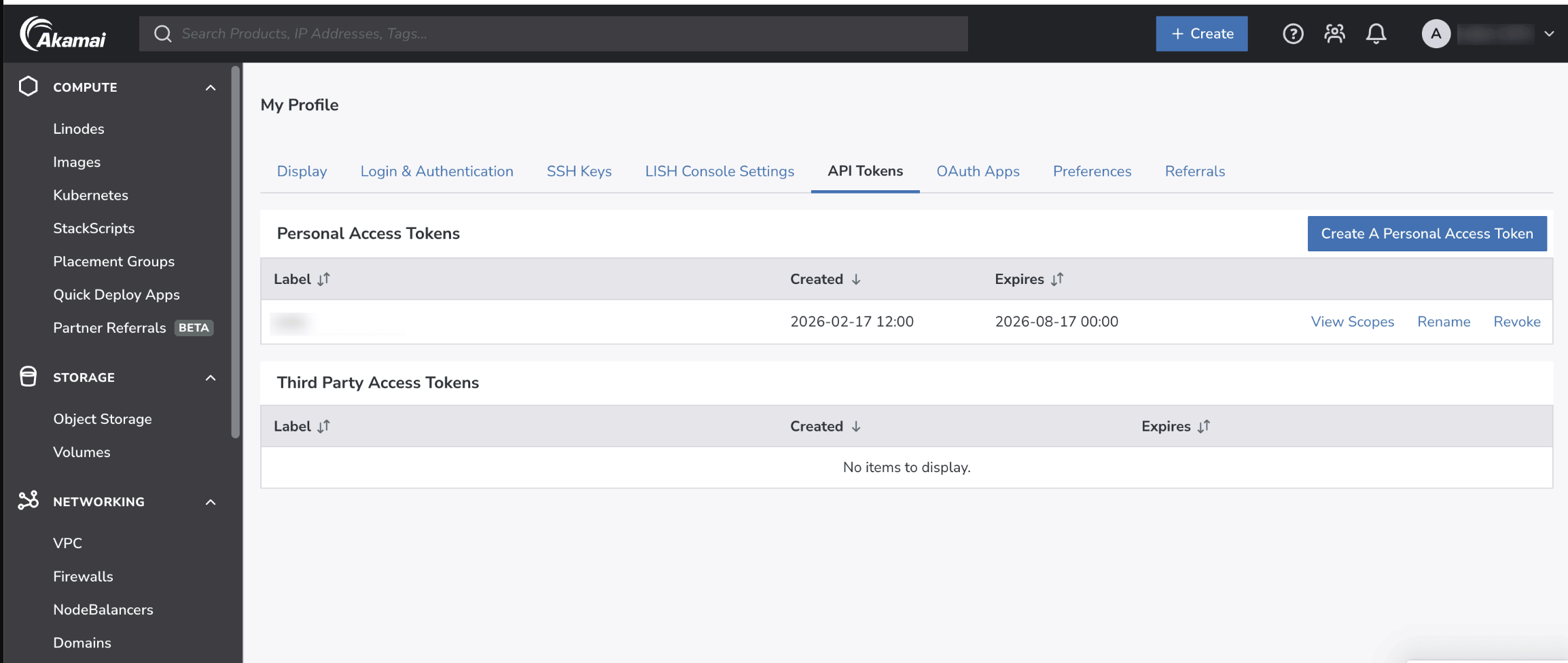
Step 2: Navigate to API Tokens
- On the right top corner panel, click your profile name.
- Click API Tokens.
- In the Personal Access Tokens section, click Create A Personal Access Token.
Step 3: Create a Personal Access Token
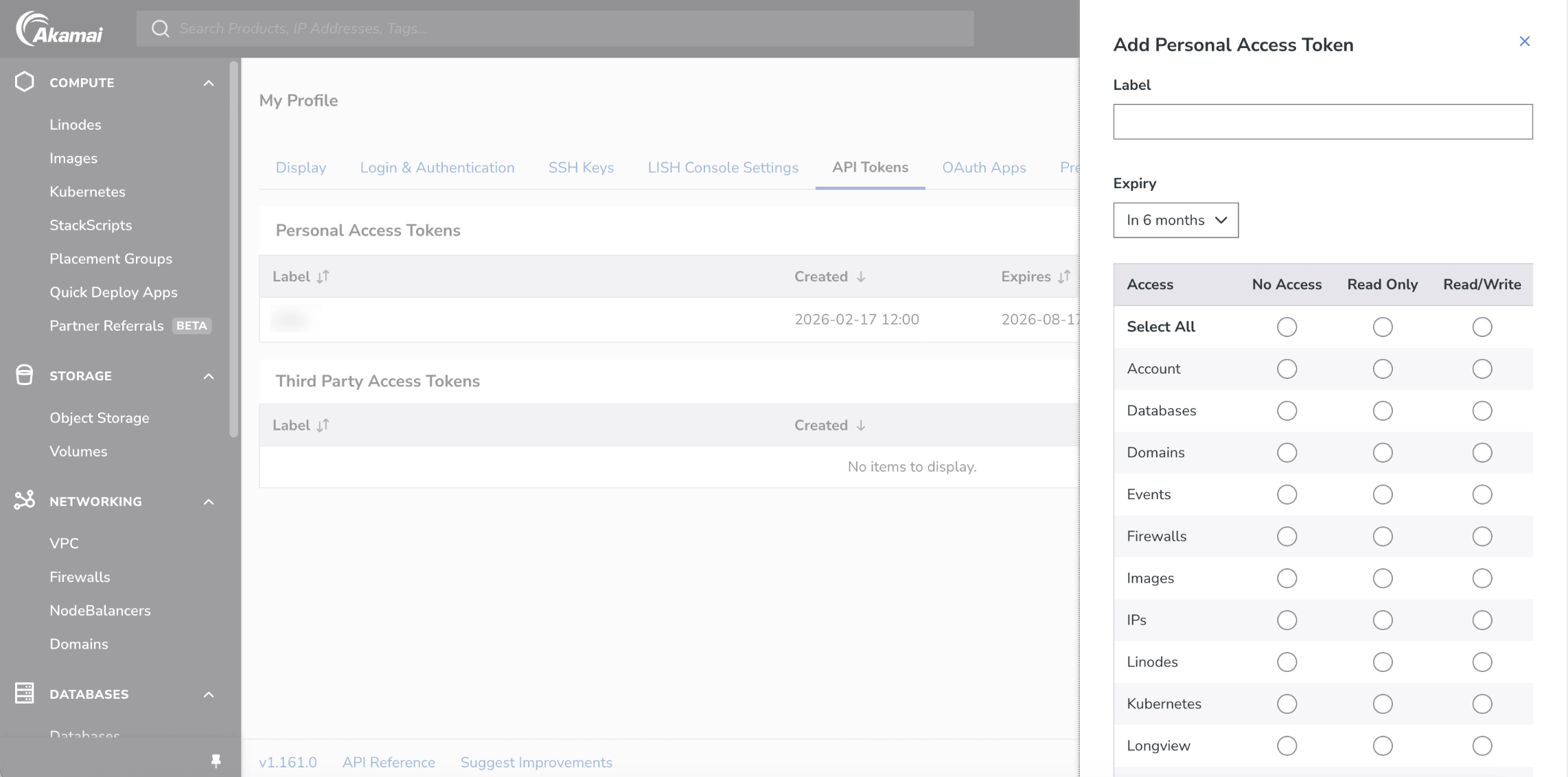
- Enter a Label name for the token, for example, site24x7-monitoring.
- Select the Expiry duration. Based on the timeline the token is set to expire, you need to create a new token for authenticating again, for example, in 6 months.
- Under Expiry, based on your preference, provide choose Read only access. For Site24x7 monitoring read access is sufficient.
- Click Add Token.
 Important
Once the token is generated, copy and store it securely. You will not be able to view it again later.
Step 4: Add the Akamai Cloud monitor in Site24x7
- Log in to your Site24x7 account.
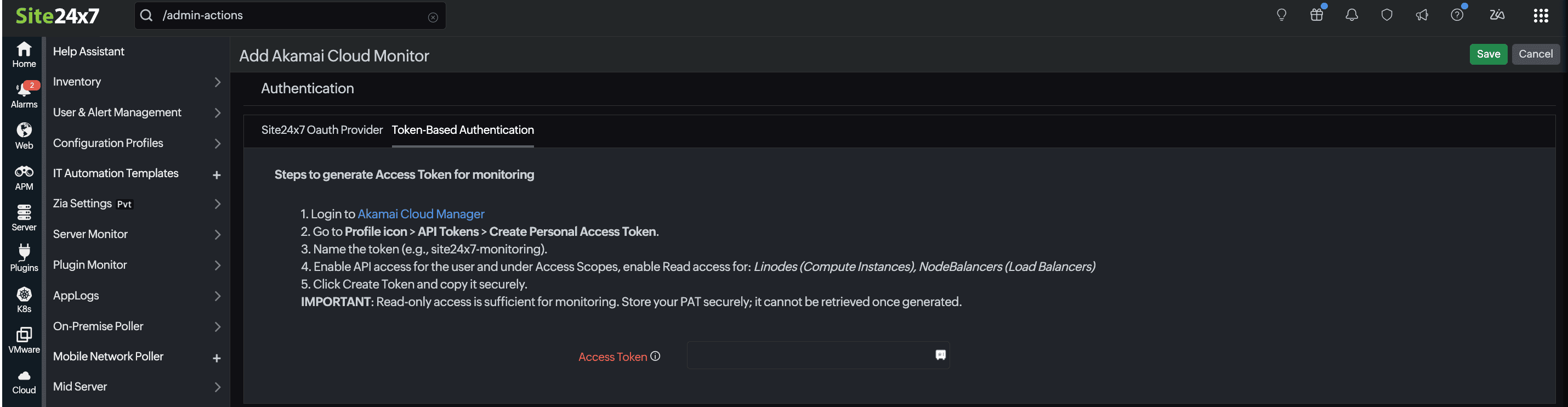
- Navigate to Admin > Monitor > Add Monitor > Akamai Cloud.
- Verify that the following prerequisites are met for the PAT:
- Read permission granted on the token.
- Akamai account has Resource Viewer permissions.
- API access is enabled.
- Access to the Akamai Control Panel or Developer API is confirmed.
- Paste the token copied in step three into the Access Token field.
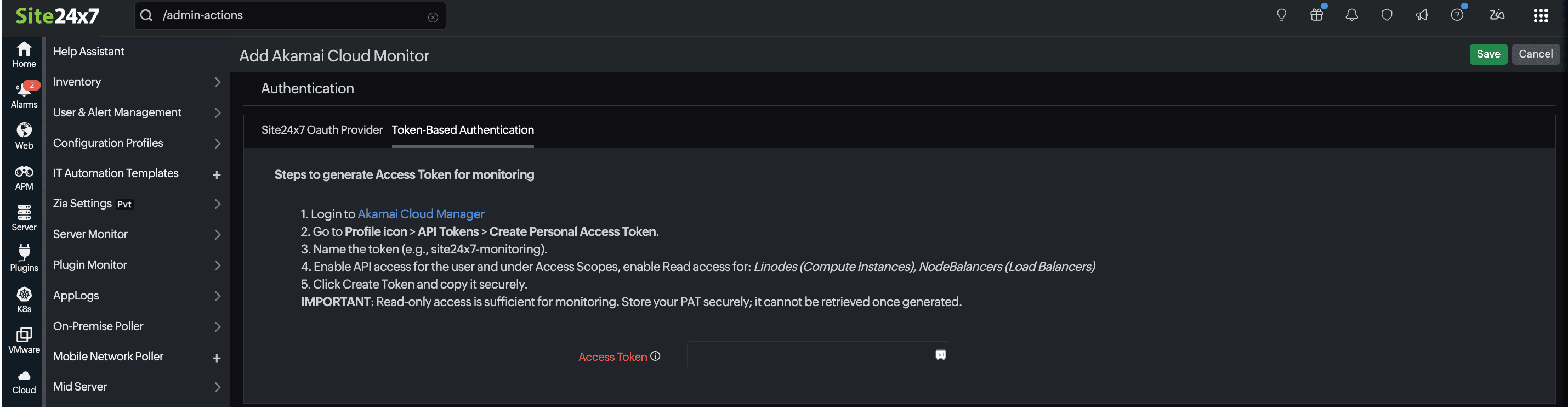
Once the credentials are saved, Site24x7 will authenticate with your Akamai Cloud account, auto-discover the monitored resources, and begin collecting performance metrics shortly.
Method 2: Site24x7 Oauth provider
Use OAuth application-based access for more secured environments such as restricted enterprise setups. Site24x7 provides an OAuth provider option that lets you register a Akamai OAuth application and use it for monitoring.
Step 1: Register the OAuth application in Akamai
- Sign in to Akamai Cloud at https://cloud.linode.com/.
- In the right top corner panel, click your profile name.
- Click OAuth Apps > Add An OAuth App.
- Fill in the fields with the following details:
- Label: Site24x7 - Akamai Integration (example)
- Callback URL: https://www.site24x7.eu/app/OAuth2CallBack (enter the URL based on your respective domains; this much match exactly with your OAuth provider)
- Public: Check this box to mark the application as public.
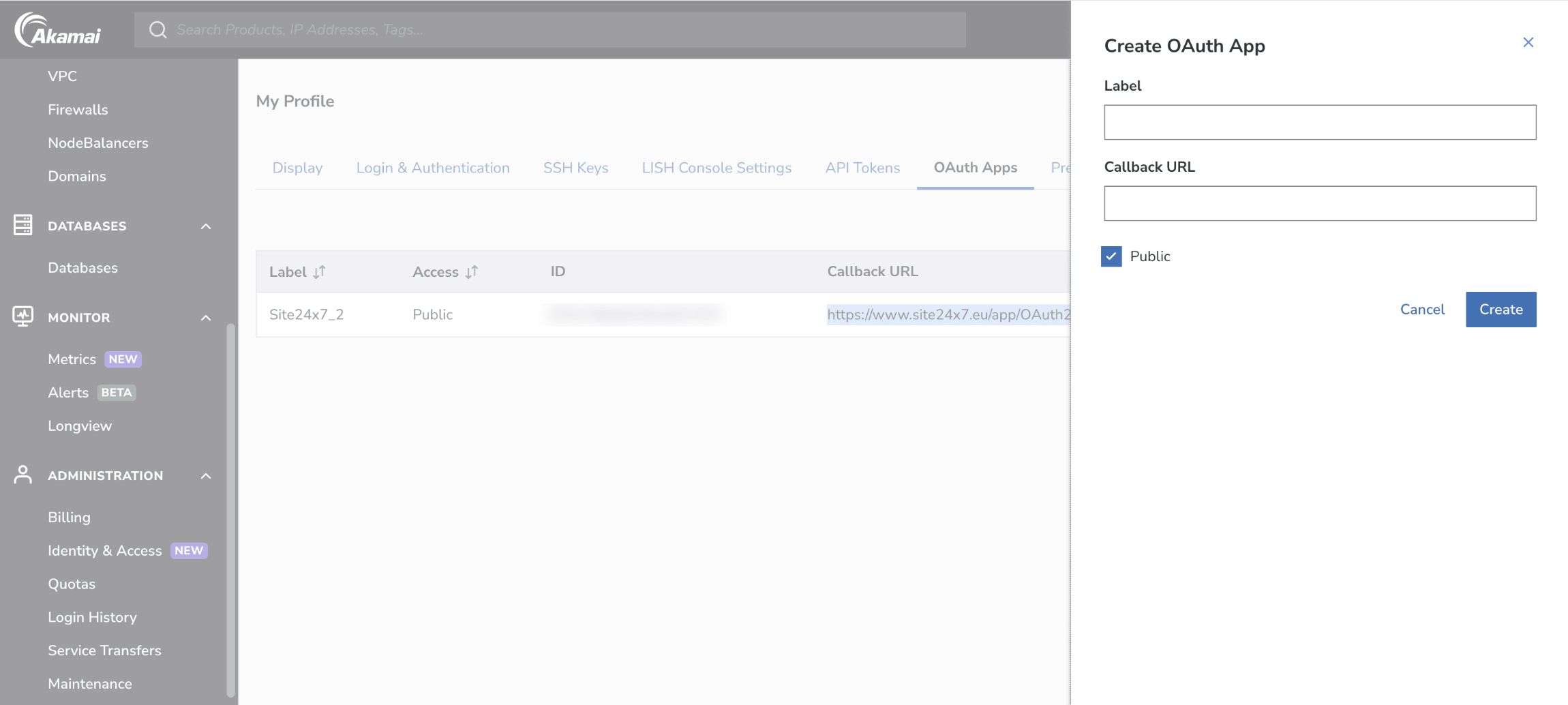
- Click Create. Akamai Cloud will provide a Client ID and a Client Secret. Store the client secret in a secure secrets manager.
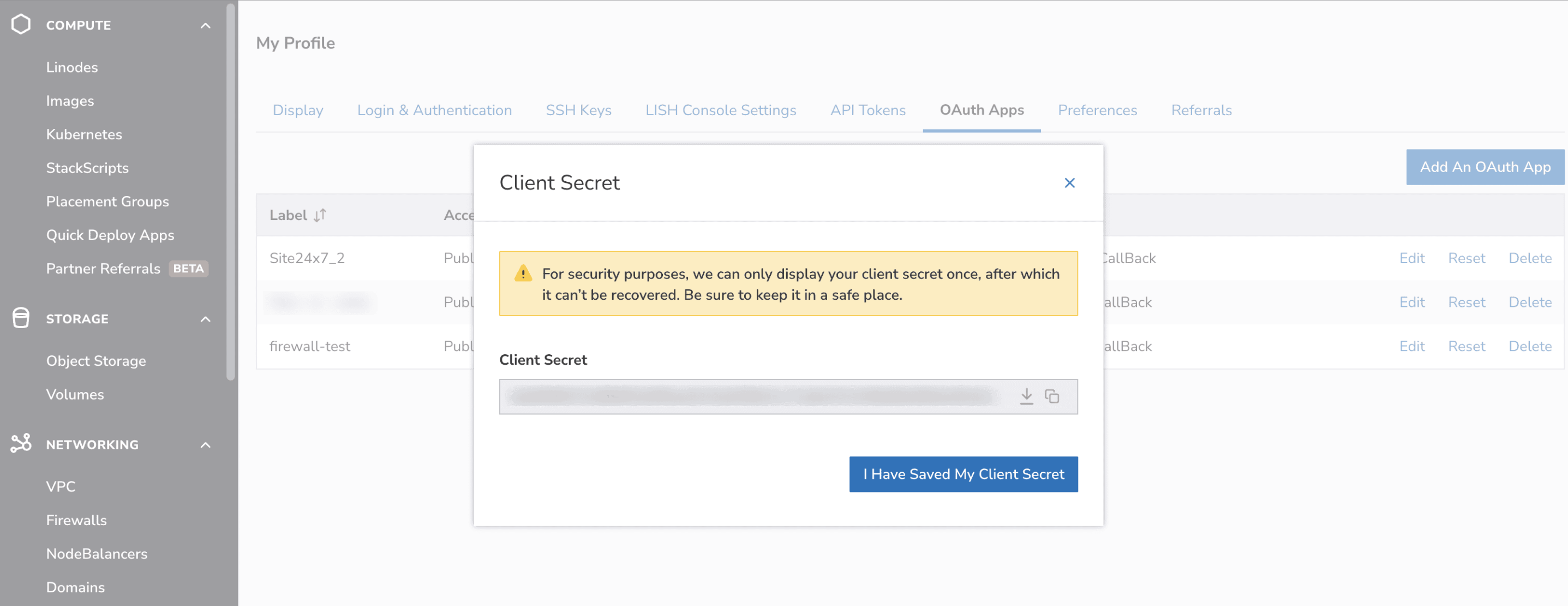
The redirect URI used in OAuth requests must exactly match the registered callback URL or you will receive an invalid_redirect_uri or invalid_grant error.
Step 2: Add the OAuth provider in Site24x7
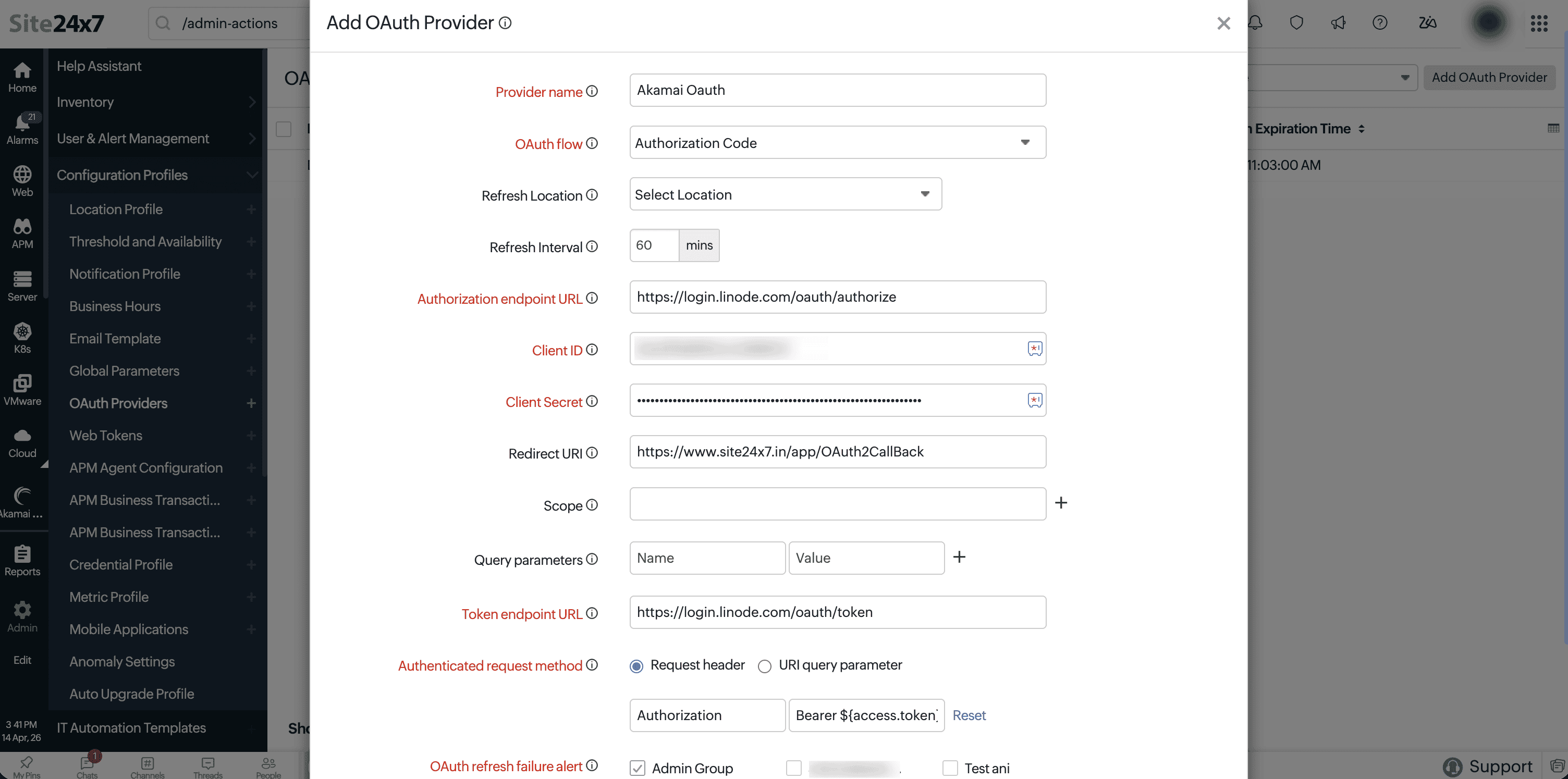
- In the Site24x7 console, navigate to Admin > Configuration Profiles > OAuth Providers > Add OAuth Provider.
- Set the Provider Name to Akamai Cloud OAuth.
- Select the OAuth Flow as Authorization Code.
- In the Authorization Endpoint URL field, enter:
https://login.linode.com/oauth/authorize. - In the Token Endpoint URL field, enter: https://login.linode.com/oauth/token.
- Enter the Client ID and Client Secret generated in Step 1.
- Ensure that the Redirect URI matches exactly what was registered in Akamai Cloud: https://www.site24x7.eu/app/OAuth2CallBack.
- Leave the Query Parameters section empty. No additional parameters are required for Akamai Cloud OAuth.
- Under Authenticated Request Method, select Request header. Confirm the header format is: Authorization: Bearer ${access.token}
- Keep the Refresh Interval at the default of 60 minutes unless a shorter refresh window is required.
- Select the appropriate User Alert Groups to receive OAuth refresh failure notifications.
- Click Authorize and complete the Akamai Cloud consent screen to generate the initial access token.
- Once authorization succeeds, click Check Configuration to validate token retrieval and refreshing.
Step 3: Add the Akamai Cloud monitor in Site24x7
- In the Site24x7 console, navigate to Admin > Monitor > Add Monitor > Akamai Cloud.
- Under the Authentication, select the Site24x7 OAuth Provider configured in Step 2.
- Select the Provider name dropdown. Site24x7 will list it automatically once it has been added.
- Click Authorize to access your Akamai Cloud cloud resources and complete the monitor setup.
Once the OAuth provider is linked, Site24x7 will authenticate with your Akamai Cloud account, auto-discover the monitored resources, and begin collecting performance metrics shortly.