
Adding a Nutanix Prism Central monitor
In enterprises where infrastructure spans dozens of clusters and hundreds of virtual machines, managing and monitoring each cluster individually can become complex and inefficient. Nutanix Prism Central monitoring in Site24x7 provides a centralized view of your Nutanix environment. It enables you to discover and monitor Nutanix clusters across multiple virtual machines from the Site24x7 web client.
Prerequisites
- Install the latest version of Site24x7's On-Premise Poller.
- Ensure that the user account associated with the provided credentials has at least one of the following roles assigned: Prism Admin, Prism Viewer, Self-Service Admin, or Super Admin.
- Nutanix Prism Central version PC 7.3 or later is required.
Add a Nutanix Prism Central monitor
- Log in to your Site24x7 account.
- Follow any of these paths. Each path leads to the same configuration page, where you can set up monitoring for your Nutanix Prism Central:
- Navigate to Admin > Inventory > Add Monitor. Under Virtualization, select Nutanix Prism Central.
- In the left panel, go to VMware > Nutanix Resources. Then, click the plus icon + beside Nutanix Prism Central.
- Enter the following specifics:
- Display Name: Provide a display name to identify the Nutanix Prism Central monitor.
- Nutanix Prism Central Hostname or IP Address: Specify the hostname or IP address of the server on which Nutanix Prism Central is running.
- Port: Specify the port to which the Nutanix Prism Central is listening.
- Location Profile: Select the location profile from the drop-down menu from where Nutanix Prism Central can be monitored.
- Associate with Monitor Group(s): Select a monitor group from the drop-down menu to logically group your monitors.
- Dependent on Monitor: Select a dependent monitor of your choice from the drop-down menu. You can add up to five monitors as dependents. Site24x7 will suppress alerts for the configured Nutanix Prism Central monitor if the dependent monitor is already down.
- In the Nutanix User Credentials section, provide the following details:
- Nutanix Prism Central Credential: Select a credential(s) that are required to authenticate and access a Nutanix Prism Central.
- In the Discover and Auto-add Resources section, provide the following details:
- Nutanix Cluster: Toggle Yes to enable monitoring of the Nutanix Cluster. The discovered Cluster will be listed under VMware > Nutanix Resource > Nutanix Cluster. By toggling to Yes, you'll be able to bulk-add all the resources in one go.
- In the Configuration Profiles section:
- Tags: Associate your monitor with predefined tags to help organize and manage your monitors creatively. Learn how to add Tags.
- IT Automation Templates: Select an automation template to be executed when there is a change in the state of the Nutanix Prism Central monitor. The defined action gets executed when there is a state change, and selected user groups are alerted.
- Execute IT Automation during scheduled maintenance: Besides automating repetitive manual tasks with IT Automation tools, you can also schedule automation to take place one after another when an incident takes place. Check the box if you wish to execute it.
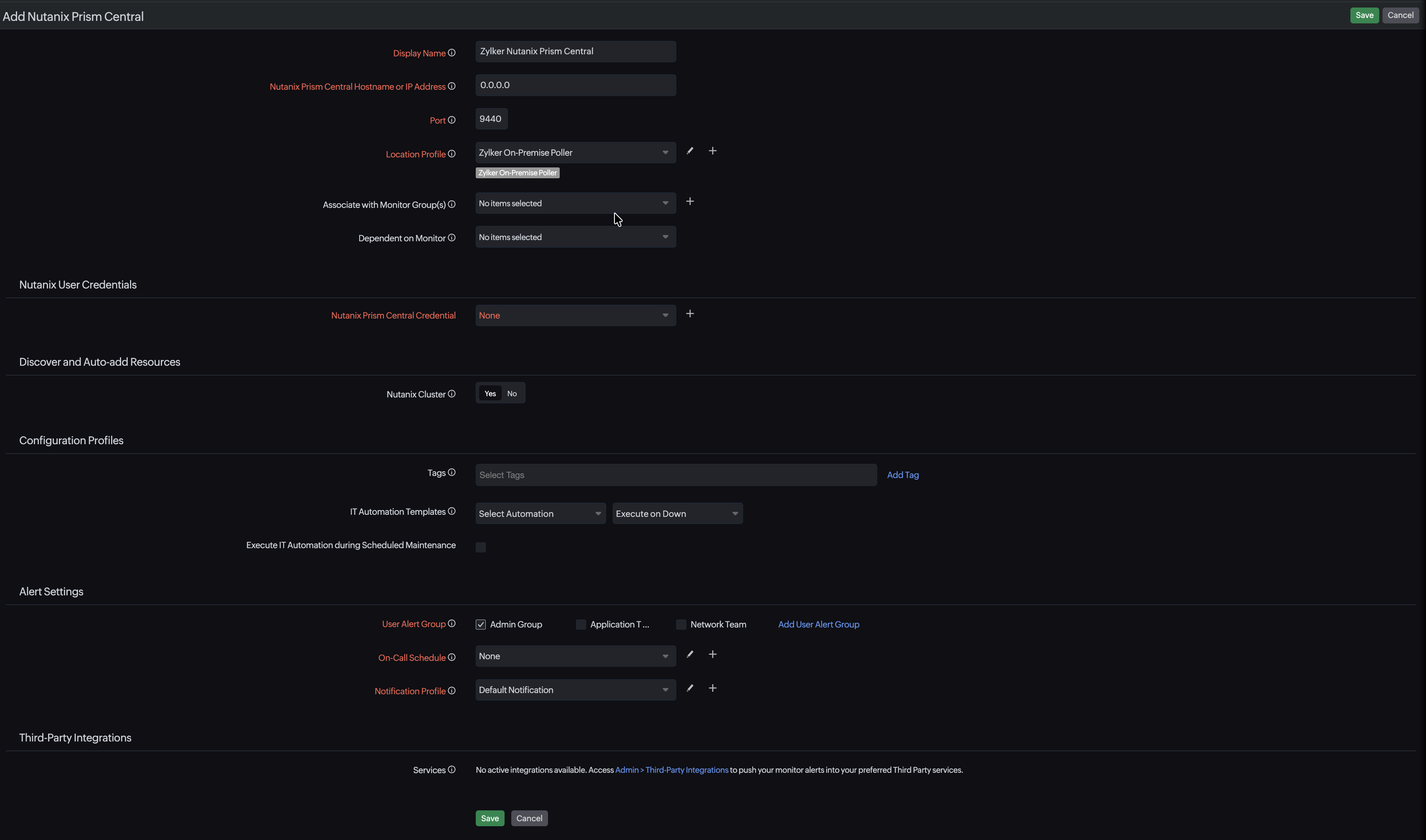
- Specify the Alert Settings:
- User Alert Group: Select the user group that needs to be alerted during an outage. To add multiple users to a group, see User Groups.
- On-Call Schedule: Choose an On-Call Schedule from the drop-down menu to stay updated via notifications in case of any incident or outage. Learn how to use On-Call Schedules.
- Notification Profile: Choose a notification profile from the drop-down menu or select the available default profile. Notification profile helps to configure when and who gets notified in case of downtime. Refer to the Notification Profile to create a customized notification profile.
- Third-Party Integration: Associate your monitor with a third-party service. It lets you push your monitor alarms to selected services and facilitates improved incident management.
- Click Save.
Note
You can easily migrate your existing Nutanix Cluster monitors to a Nutanix Prism Central monitor. To do so, click the hamburger icon beside the name of the required Nutanix Cluster monitor. Then, in the Poll Using toggle, select Nutanix Prism Central. Contact the Site24x7 support team at support@site24x7.com for assistance.
Related article
-
On this page
- Prerequisites
- Add a Nutanix Prism Central monitor