Customer Profile Configuration - Sync Profiles from Customer
The Sync Profiles from Customer feature enables MSP administrators to copy selected configuration profiles from a source customer account to one or more target customer accounts. This helps maintain consistent configurations across customer accounts.
Synchronize configuration profiles
Follow the steps below to synchronize profiles from a customer account:
- Log in to your Site24x7 MSP account.
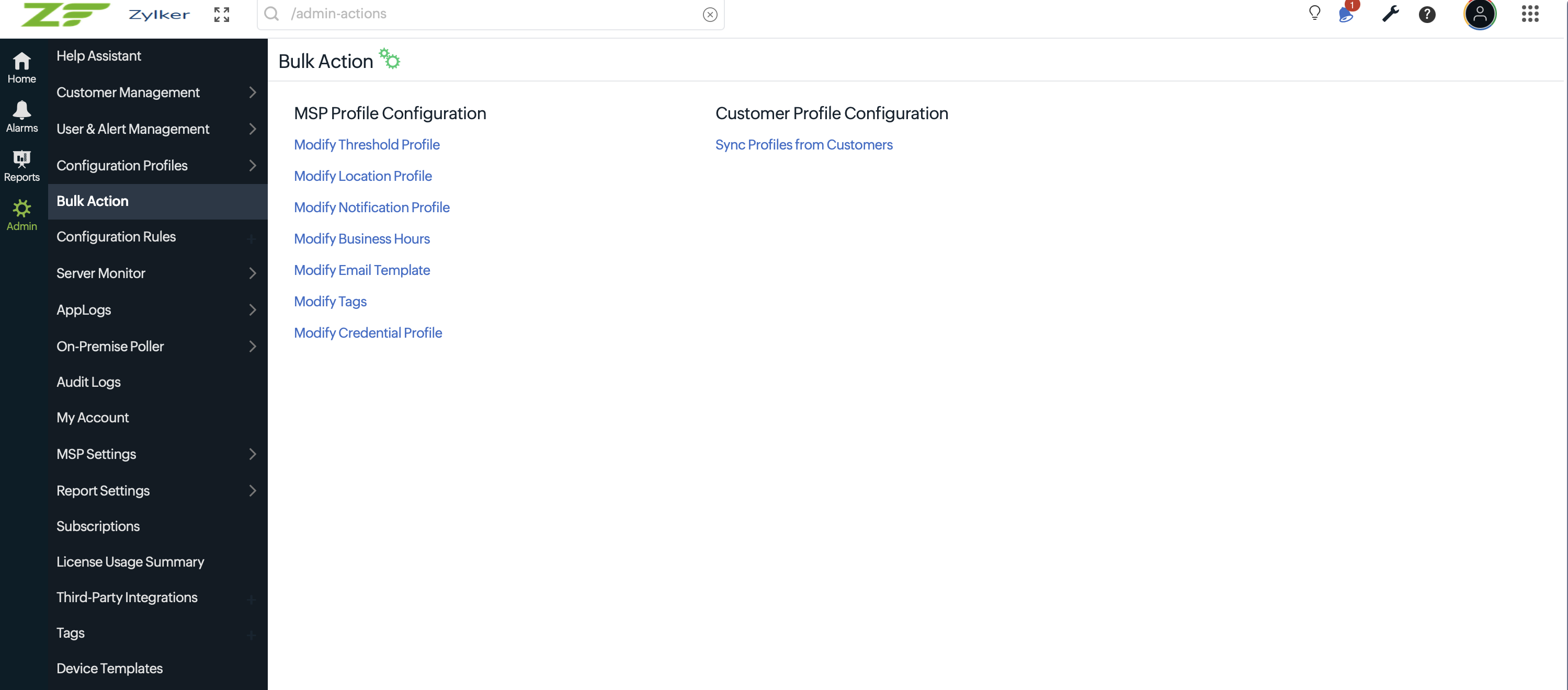
- Go to Admin > Bulk Action .
- Select Sync Profiles from Customer .
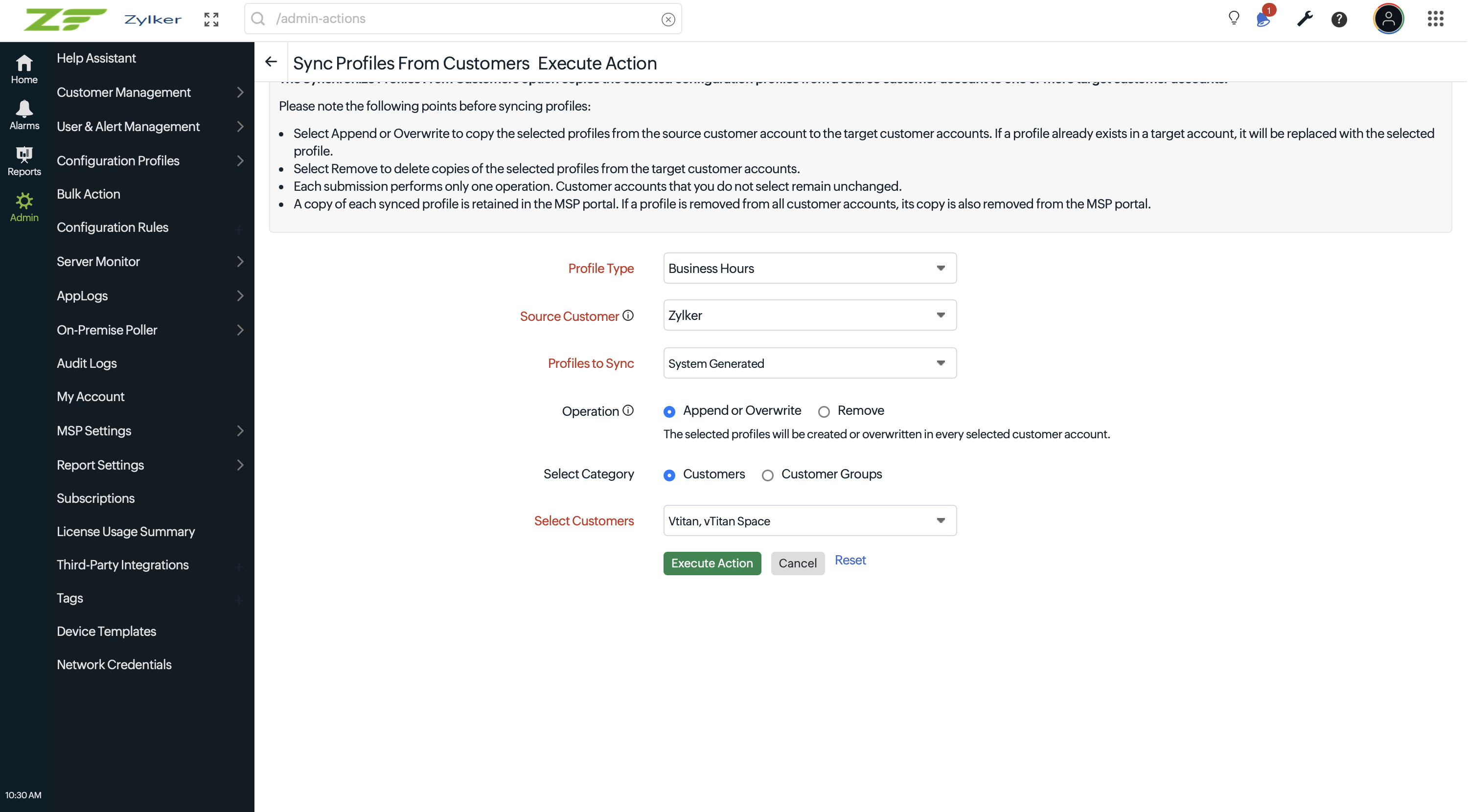
- Provide the following details:
- Profile Type: Select the type of profile that you want to synchronize. The following profile types are supported:
- Threshold Profiles
- Location Profiles
- Notification Profiles
- Business Hours
- Email Templates
- Tags
- Global Parameters
- Query Template
- IT Automation
- Resource Check Profile
- Source Customer: Select the customer account that contains the profiles you want to synchronize. Only profiles of the selected type from the selected customer account will be displayed.
- Profiles to Sync: Profile Sync copies configuration profiles from the source customer account to one or more target customer accounts. Select one or more profiles that you want to synchronize with the target customer accounts.
- Operation: Select the operation that you want to perform:
- Append or Overwrite: Copies the selected profiles from the source customer account to the selected target customer accounts. If a profile with the same name already exists in a target account, it will be replaced with the selected profile.
- Remove: Deletes copies of the selected profiles from the selected target customer accounts.
- Select Category: Select Customers or Customer Groups to which the profile should be copied..
- Target Customers: If you select Customers , select the customer accounts to which the operation should be applied.
- Target Customer Groups: If you select Customer Groups , select the customer groups to which the operation should be applied. The selected operation will be applied to all customer accounts in the selected groups.
- Profile Type: Select the type of profile that you want to synchronize. The following profile types are supported:
- Click Execute Action .
- Review the confirmation message and click Proceed to initiate the profile synchronization.
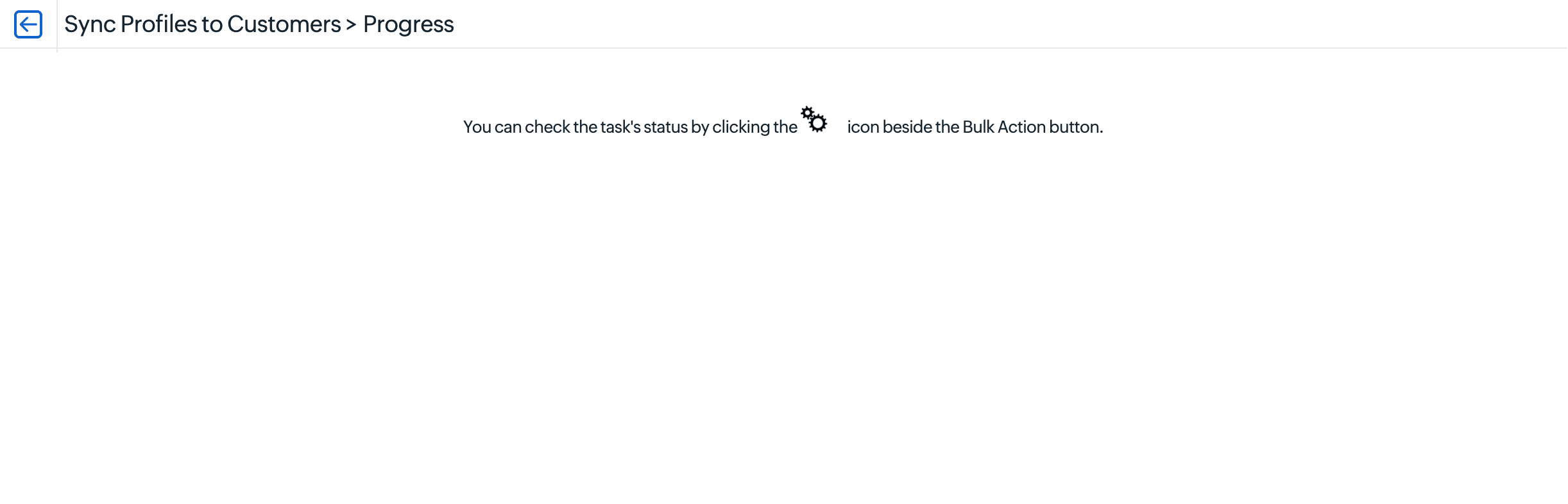
The synchronization task will be initiated, and the changes will be reflected in the selected target customer accounts shortly. You can view the task status on the Bulk Action page.
View the synchronization status
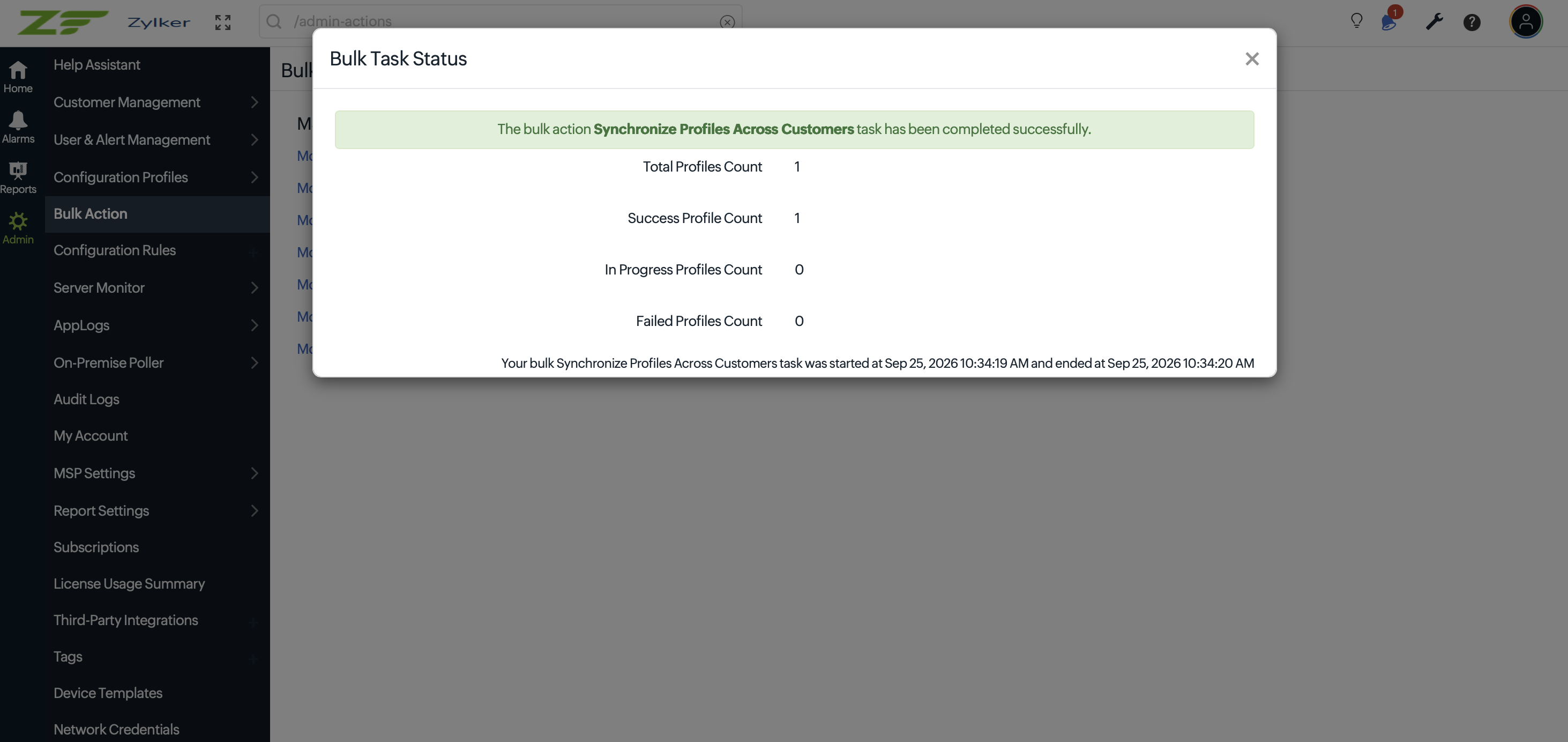
Click the corresponding status icon [icon] on the Bulk Action page to view the details of the synchronization task.
The following icons indicate the task status:
| Status | Description |
|---|---|
| Success | The profile synchronization was completed successfully. |
| Partial or complete failure | The synchronization was completed for some accounts or could not be completed. |
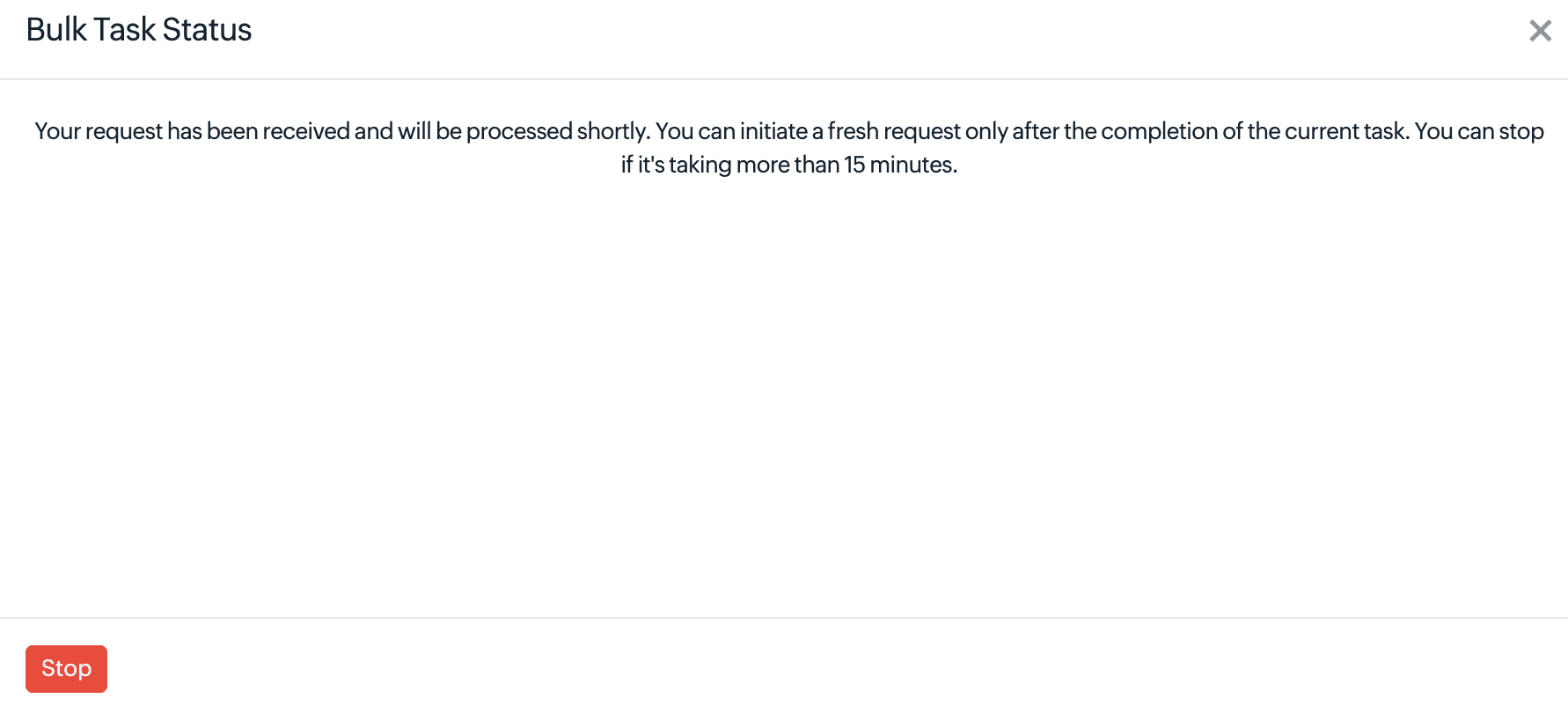
| In progress | The synchronization is still in progress. It may take a few minutes to complete. |
The task details display the total number of profiles processed and the number of profiles that succeeded, are in progress, or failed.
Profile copies in the MSP portal
A copy of each synchronized profile is retained in the MSP portal.
- The copy is created when the profile is synchronized for the first time.
- The copy is updated whenever the source profile is synchronized again.
- If a profile is removed from all customer accounts, its corresponding copy is also removed from the MSP portal.