
by Jyotsna R
Hi everyone,
Managing multiple customer accounts often means switching between individual accounts to review their monitor configurations and associated profiles. This can make it time-consuming to get the information you need.
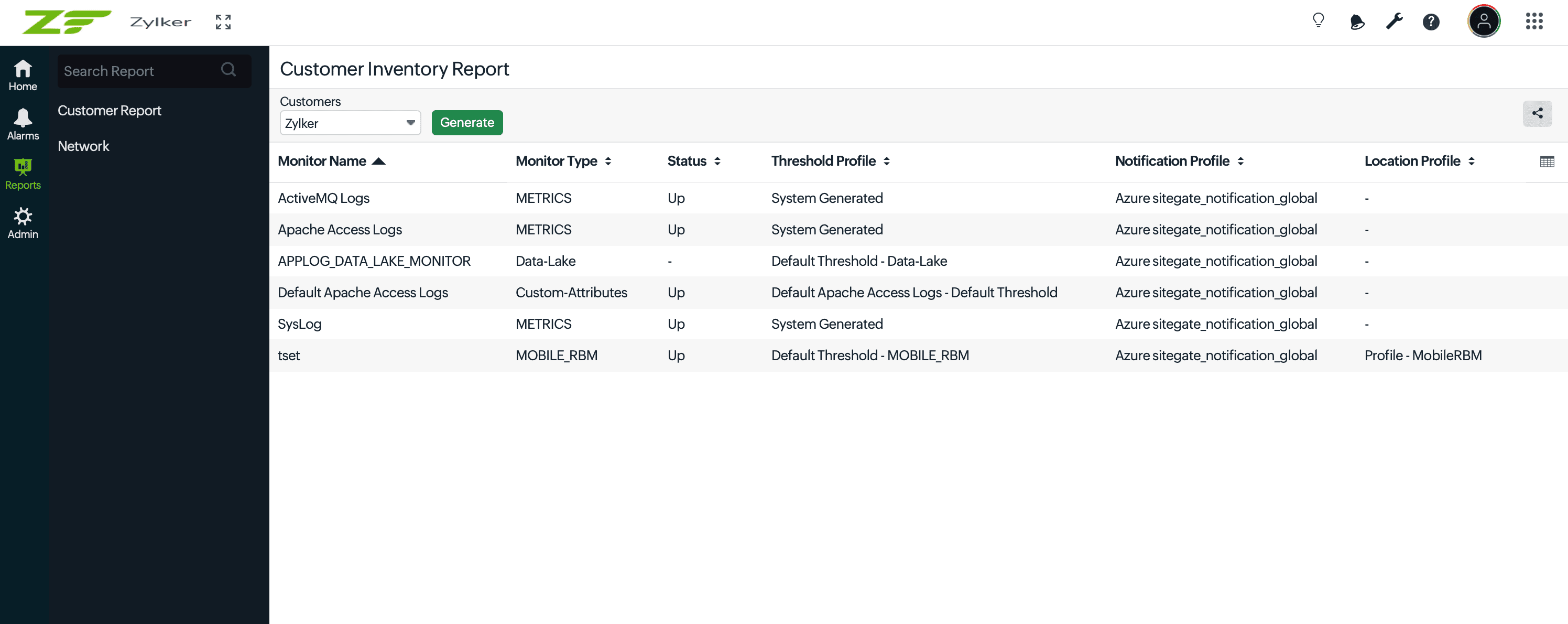
With the Customer Inventory Report, you can now access a customer's monitor inventory directly from the MSP level—without navigating to the individual customer account.
Simply select a customer to get a consolidated view of their monitors, including the monitor type, current status, and associated threshold, notification, and location profiles.
With this report, you can:
- Stay at the MSP level: Access each customer's monitor inventory without switching to individual customer accounts.
- View monitor details in one place: Review monitor names, types, and current statuses for the selected customer.
- Verify profile assignments: Check the threshold, notification, and location profiles associated with each monitor.
- Share reports easily: Export the report as a CSV or PDF, or schedule it for automatic delivery.
To get started, navigate to Reports in your MSP account, open the Customer Inventory Report, select the required customer from the Customers drop-down menu, and click Generate.
Try it out and let us know your feedback in the comments below.
Best regards,
The Site24x7 team
Like (0)
Reply
Replies (0)